
Video Widget
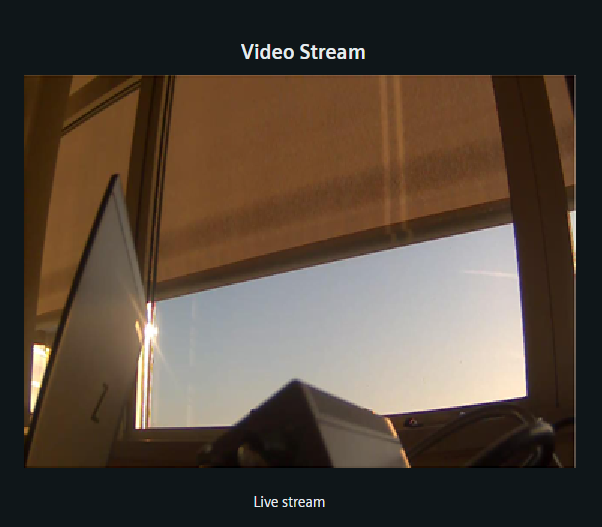
The Video Widget displays a video stream in the Dashboard by utilizing the HTTP Server.
Additional Configuration Steps
- The video functionality and the Dashboard must be added to the same project. This means WinCC OA must have the Video-Add-On installed and the cameras configured, see chapter Creating cameras.
- A Control and a Video manager must be added to the Dashboard project, see chapter Step by Step new Video Project.
- Create and configure an HTTP Server in the Object Explorer at .
- Add the host name of your computer via the . See chapter System configuration.
Settings
The Video Widget can have the custom appearance settings of custom title, colors and controls.
Content
The Video Widget displays either a video stream on a custom URL or a stream selected from the cameras available in the WinCC OA project. The video mode can be set as either Live or playback modes, though no camera control is possible in the playback mode. The stream can either be embedded as a JPEG stream or as an HTML page. In JPEG format the entire image contains the video and there is no control area. The cameras can be controlled in HTML format, if the camera type allows this. The video quality can be freely set to a procentual value.