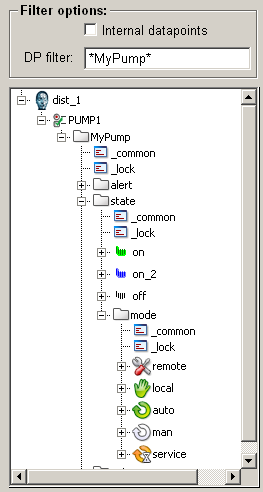
Structure of the PARA module
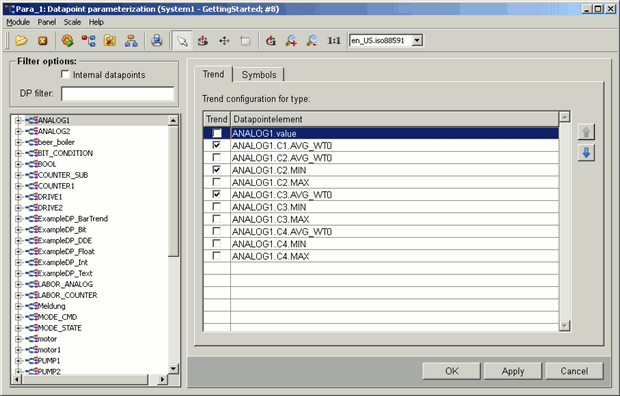
The PARA module is integrated in the module VISION. The PARA panel is displayed in the module VISION window. The VISION module window contains a title bar, menu bar, tool bar with buttons and a work area. If you open e.g. the PARA panel, it will be displayed in the work area of the VISION module (see figure).
The PARA panel contains
- a PARA Tree (also known as a tree view) in the left-hand part that displays the structure of systems and data points, and can be used in a similar way to a tree view in Windows Explorer.
- and a panel field on the right-hand side of the PARA panel showing the panels for e.g. configuration of the data point configs. See the figure for an example.
Starting the PARA module
You can open the PARA module using the PARA button  in the
GEDI module.
in the
GEDI module.
or:
start the PARA module directly from the console with the command line
"-m para":
WCCOAui -m para
If WinCC OA is used with distributed systems, also the single systems in the TreeView of module PARA are visible and the tree structure of the systems can be opened.
The implementation of the mass configuration changed the PARA module (e.g. new context menus for the mass configuration). (See also chapter Data point type, master data point and data points).
Browse the PARA tree and view data point configs
After selection of a data point type in the panel field a panel with two tabs is displayed ("Trend" and "Symbols") - see Figure.
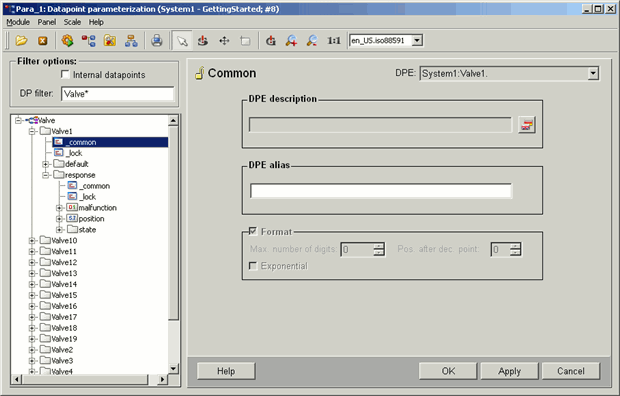
You can see an example for the data point type configuration in the figure below. The PARA tree shows an opened data point type (=DPT) "Valve1". This contains nodes and leaves. The "common" config of the "Valve1" data point element is selected. The Config panel for "common" is displayed in the right part of the PARA panel (by double-clicking on "common").
Displaying data points
Above the tree view you can specify filter options for displaying the data points.
Displaying internal data points
WinCC OA uses internal data points.
By default the tree view is opened without displaying the internal data points. Clicking on the Internal data points check box enables to display the internal data points of WinCC OA.
Data point filter
You can filter data points by entering a search pattern in the DP filter input field.
You can also add datapoints from the PARA tree to the DP filter input field via drag and drop.
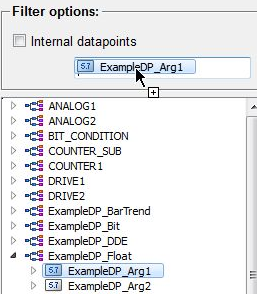
When it is filtered by a data point and the search returns results, then also all data point elements are always shown. This means that the DP filter can only expand the search levels, but can not filter the desired data point elements, when it has been filtered by a data point.
Example
*analog1*, *analog1*.*, *analog1*.*.* -> the tree is up to the 1st, 2nd and 3rd layer rolled out, but there are also data point elements of a data point which do not meet this search criterion.
In other words, more complex criteria, such as for example *analog1*.*.A* deliver all elements of the data point, which includes "analog1", irrespective of whether the data point element starts with an "A" or not.
Wildcards for search pattern
You can use the "?" wildcard for just one arbitrary character or "*" for any number of arbitrary characters
Example of a DP filter used for all data points
In order to display all internal and non-internal data points, click on the Internal data points check box. Type for instance the search pattern "_A*" in the "DP filter" field and confirm with enter.
Result
The figure below shows the result.
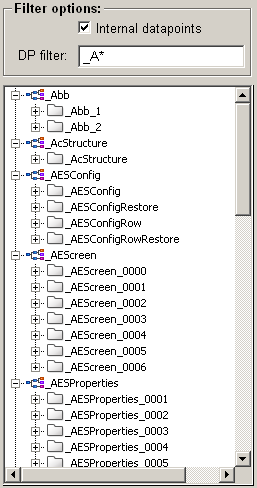
If the data point filter e.g. "_A*" is set, the tree shows the data point types that contain data points beginning with _A. This filter is applied to all data points, i.e. including "internal data points".
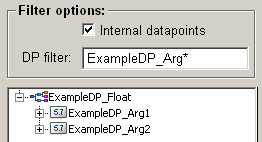
If you want to search e.g. the ExampleDP_Arg data points, specify the filter ExampleDP_Arg*. The data points ExampleDP_Arg1 and ExampleDP_Arg2 are shown.
Individual icons in the PARA tree
With the CTRL function dpTreeSetIcons() you can set individual icons for a system, a data point type or a data point element in the data point tree view that are then global effective for the entire UI.