Online Backup with Acronis Cyber Protect
WinCC OA provides automated integration of WinCC OA backup functionality with Acronis backup software.
Acronis Cyber Protect is an all-in-one solution that integrates data protection and cybersecurity to provide comprehensive cyber protection. In tandem with WinCC OA's Online Backup functionality, the Acronis backup software provides an even more secure way to protect your project data. The solution ensures data consistency by performing structured backups before Acronis executes system-level backups.
Backup and Restore configurations are managed directly via the Acronis Dashboard.
Requirements and Installation
Requirements
- WinCC OA version 3.20 or higher
- Acronis Cyber Protect Software, including corresponding licenses issued by Acronis
- A machine or network server with sufficient disk space for backup files.
Installation
Before you can use Acronis Cyber Protect, a license has to be assigned to the PC you are using to configure the backup. Licenses can be managed via the Acronis license management website. The installation files can also be downloaded from there.
From there on, follow the guide on the Acronis Help Page on how to install the software on your machine.
There are no further installation steps needed on WinCC OA side.
Restrictions
- Acronis is not currently supported under RHEL 10.
Acronis Dashboard - Management Overview
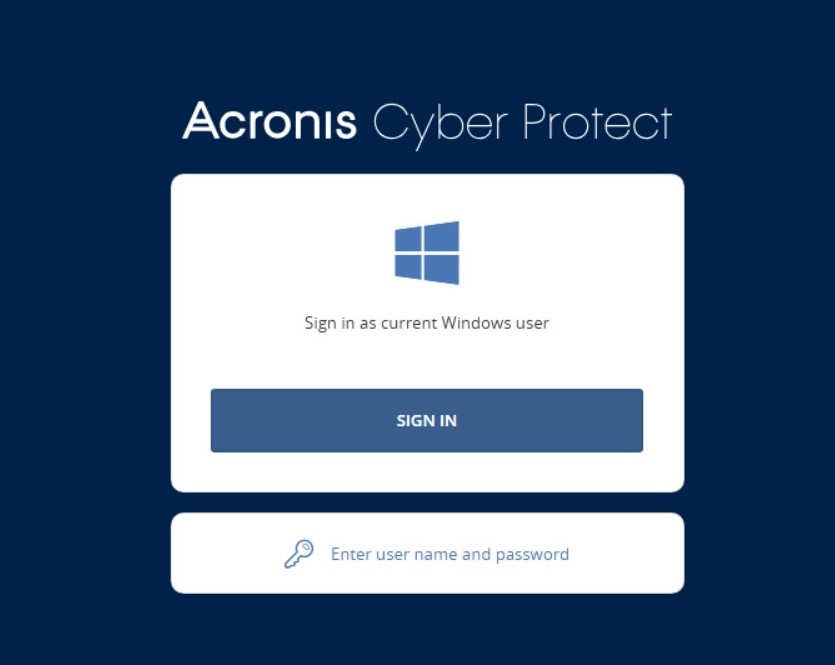
Once you've installed the Acronis backup software, Acronis provides a dashboard app for easy management of your configured backups. Log in with your OS credentials.
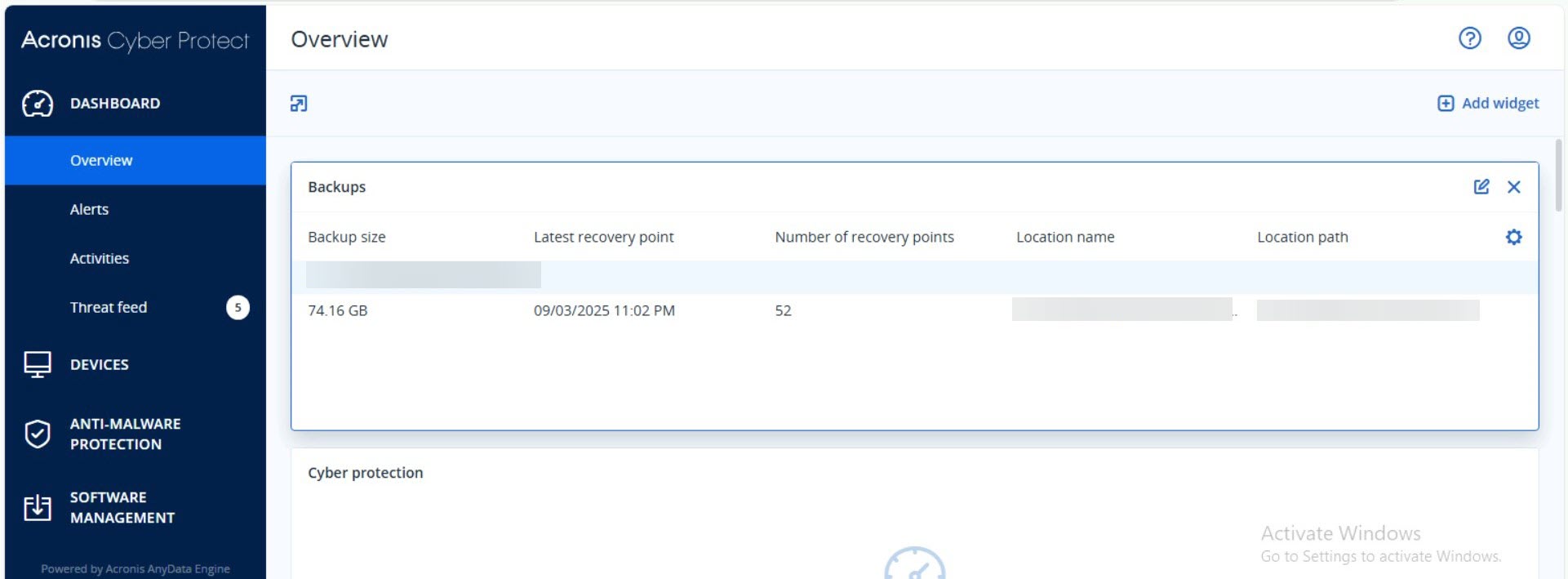
The Acronis Dasboard gives you an overview of all your currently connected devices as well as the backups you have configured for them.
Backup Process
Preparation Steps
Before running an Acronis backup for your WinCC OA server, make sure the following steps have been carried out properly.
- Perform a WinCC OA Online Backup.
- Create a PostgreSQL® Database Backup.
- Ensure that all data is in a consistent state before carrying out the system backup.
Setting up the Acronis Backup
To set up a new backup plan, first open the Acronis Dashboard. Then, proceed with the following steps:
- Select the location from your machine or network where you want your backup to be stored.
- On the Dashboard, navigate to the Devices tab and select the device you want to configure the backup plan for. All registered devices for which you have the appropriate Acronis licenses and permissions are displayed on this tab.
- Click the Protect button on the device you wish to create your backup for.
- Create a new protection plan by clicking Apply protection
plan and then
Add plan. With the Specify button, you can set the details for your plan. Once you have configured the backup to your specifications, click Create.Figure 1. Add a new backup plan 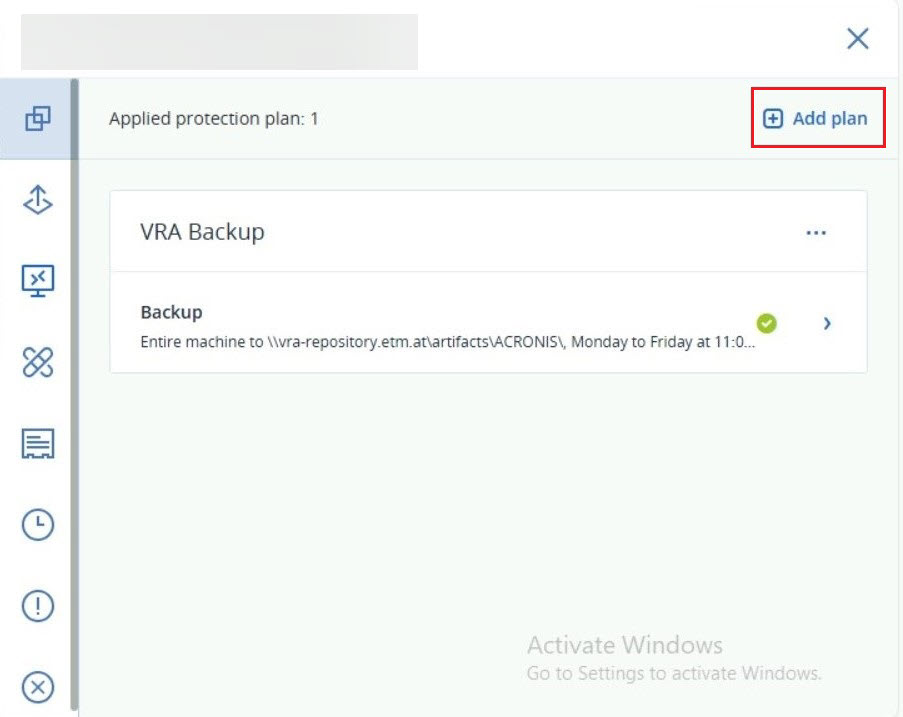
Figure 2. Edit the created backup plan 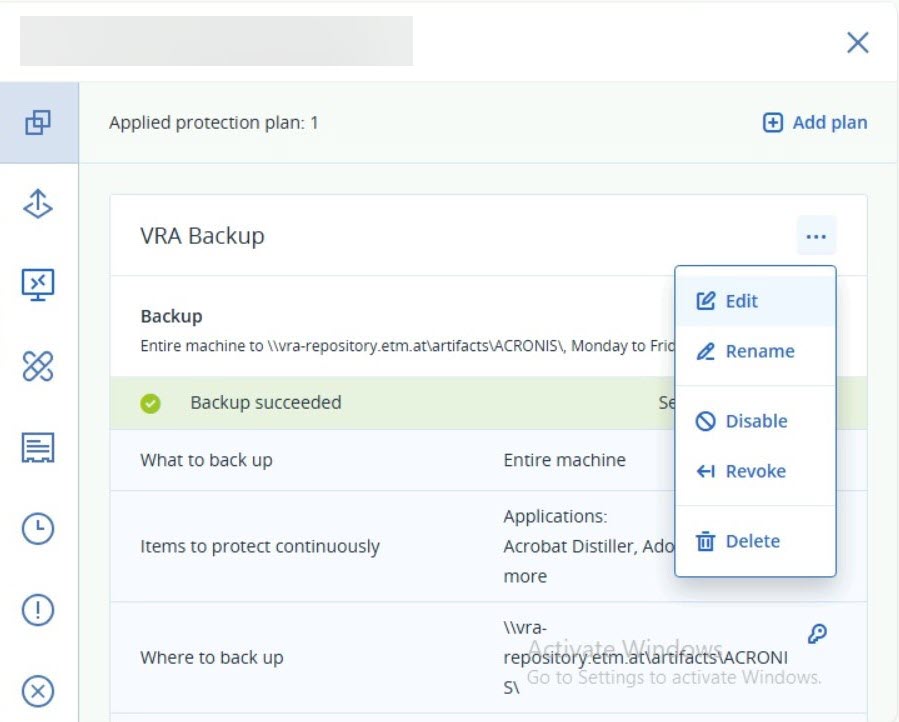
If you are using Acronis backup in tandem with the WinCC OA online backup and/or NGA backup, follow these additional steps.
- Click on the Edit button of the backup plan you have
created in the previous step. Then navigate to
Backup Options→Pre-post commands. - In this tab, add the command or batch file for WinCC OA. The
files can be found in the WinCC OA installation directory, in
the folder data/acronis.´The files in question are
run_backup.bat for Windows, or
run_backup.sh for Linux.
Figure 3. Configurations in the Pre-post commands tab 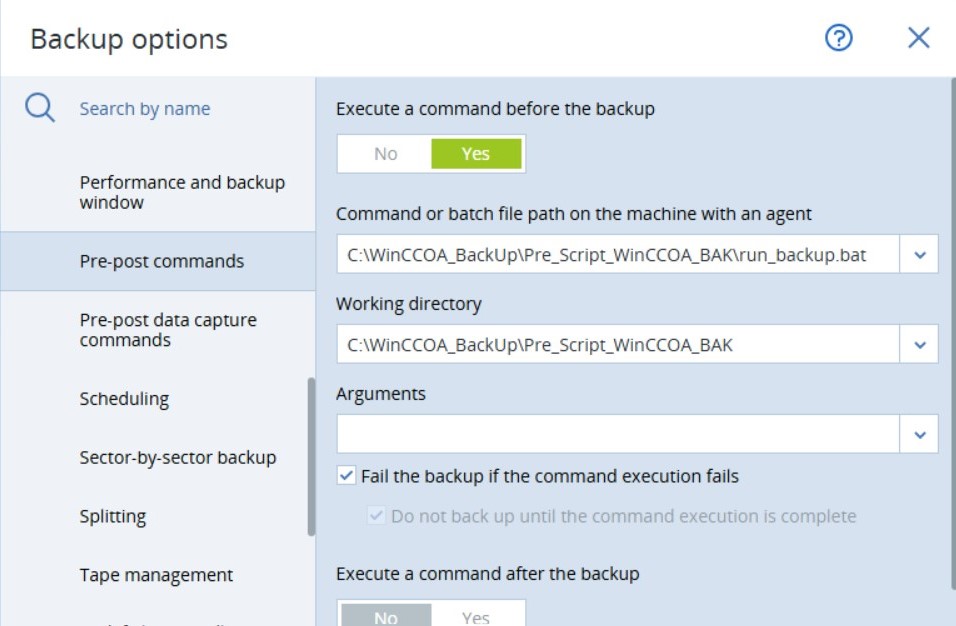
- The path for the Working Directory should be set to
<WinCC OA Installation
                    directory>/data
.
Timeout Configuration
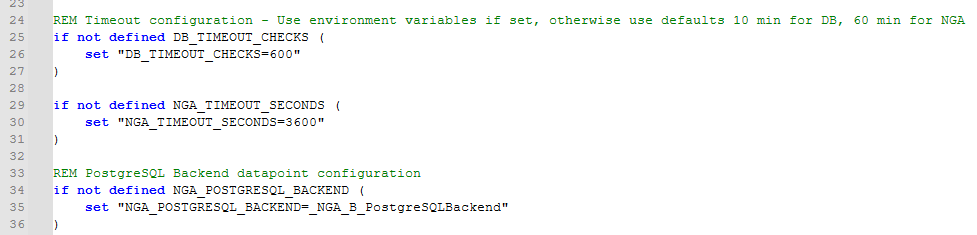
If desired, a timeout can be set for the backup process. This should be determined based on the size of your database. By default, the Acronis backup does not have a timeout. out.
In the run_backup script, the CLI parameters can be modified by
environmental variables to set backup timeouts for database, NGA, and
PostgreSQL®.
Error Codes
If a backup fails for any reason, the Acronis Dashboard will return error codes. These error codes are divided into Control Script Errors (errors related to the database) and Batch Script Errors (Errors related to the run_backup script)
| Code | Description |
|---|---|
| 1 | Database backup timeout |
| 2 | Database backup failed |
| 3 | Project files backup timeout |
| 4 | Project files backup failed |
| 5 | PostgreSQL® backup timeout |
| 6 | PostgreSQL® backup failed |
| 7 | Datapoint operation error (dpGet/dpSet failure) |
| Code | Description |
|---|---|
| 8 | Could not determine WinCC OA path from script location |
| 9 | DB_TIMEOUT_CHECKS invalid or not a positive number |
| 10 | NGA_TIMEOUT_SECONDS invalid or not a positive number |
| 11 | WinCC OA installation not found (WCCOActrl.exe/.exe missing) |
| 12 | Backup script file not found (dataBaseBackUp.ctl)d |
Redundancy
In redundant systems, the Acronis backup can be configured for each machine, but a backup of the active server is usually sufficient. It is also possible to back up only selected datapoints from the passive server.
Recovery Process
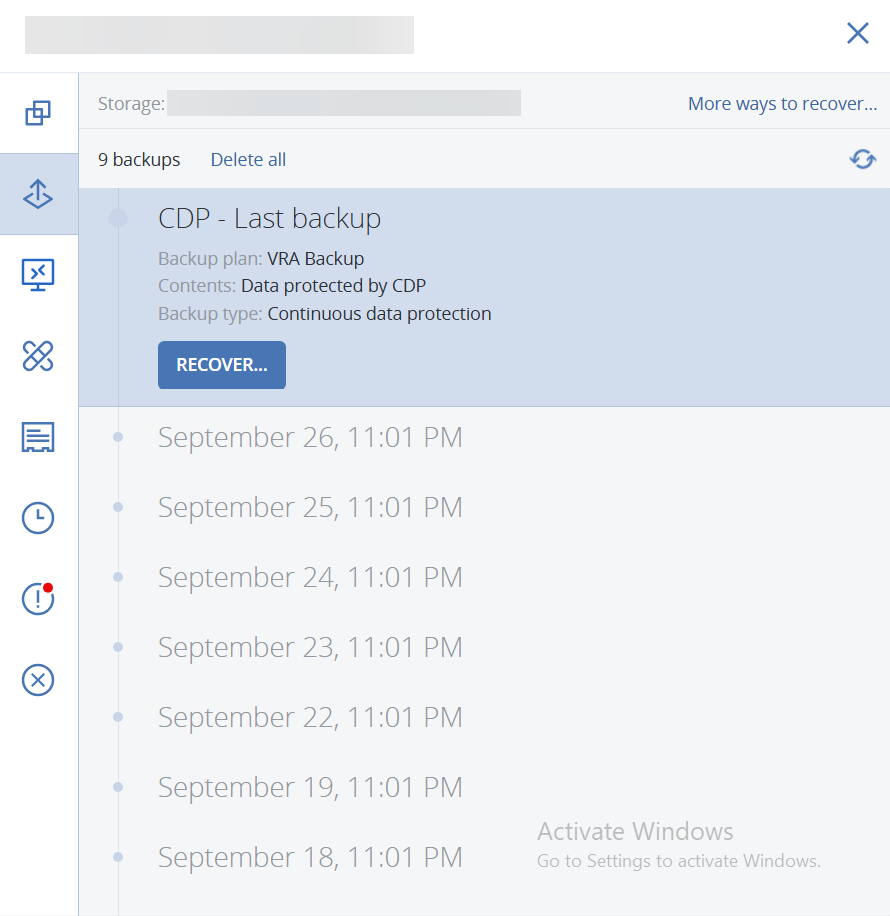
To recover a previously saved backup, navigate to the Recovery tab on the Acronis Dashboard. From there, you can directly select the backup file you want to recover.