
Alarm View Widget
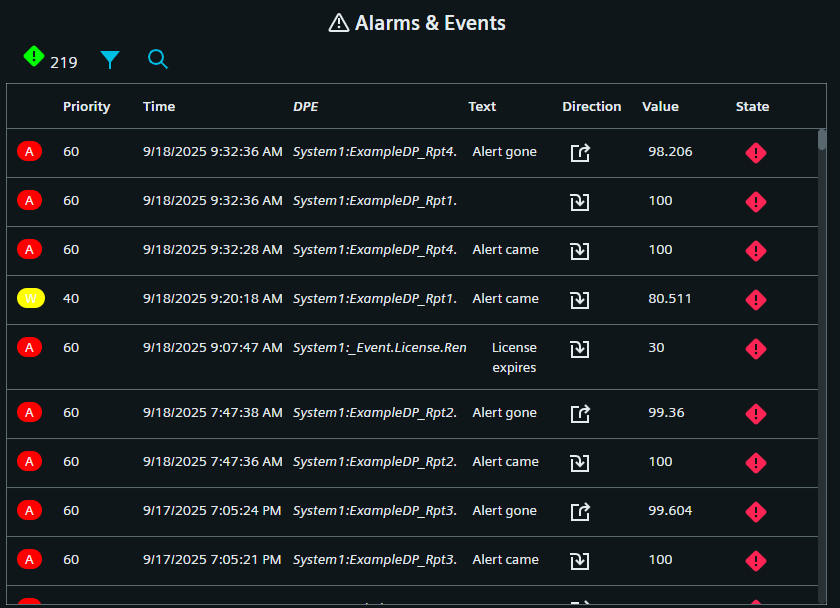
The Alarm View Widget provides an overview over all active alarms and alerts, similar to the Alert and Event screen.
Settings
The Alarm View Widget can have the custom appearance settings of custom title, colors and controls.
Content
N[unit]/[modifier]. For this,
N specifies a natural number, unit the chosen unit of time and the modifier
specifies the start or end of the unit or current time (if this is not provided
otherwise). The available units are:
- s - second
- m - minute
- h - hour
- d - day
- w - week
- M - month
- Q - quarter
- Y - year
- 1d/d - 1d/d - Yesterday (full day)
- 1d - Last 24 hours
- 2h - Last 2 hours
- 1w/w - 1w/w - Last week (Monday - Sunday)
Formatting
The columns to be displayed in desktop or mobile view can be selected from the standard columns available in the Alert and Event screen. The checkbox below can be enabled to force the mobile view to be shown.
Advanced
The advanced settings allow you to more closely define which alarms are shown. The acknowledgement checkbox open will mean unresolved alarms are shown. The sorting can be prioritized after time or priority, in ascending or descending order. All settings can also be set to being selectable at runtime. For historic alarms, the time range can also be set to selectable at runtime
Dashboard View Controls
Within the standard Dashboard View, the alert badge( ) is always present and shows the number
of currently active alerts.
) is always present and shows the number
of currently active alerts.
The funnel symbol( ) opens a selection
for available filters and sorting.
) opens a selection
for available filters and sorting.
The slider ( ) in the middle controls
whether all alerts or only unacknowledged alerts are shown.
) in the middle controls
whether all alerts or only unacknowledged alerts are shown.
The magnifying glass icon( ) opens the
search to only see specific alerts.
) opens the
search to only see specific alerts.
When historical alarms are displayed, the desired time period can be selected using the
clock icon( .
.