
Step 3 - Import update and create a receipt (Offline PC)
- Select the update file (.RAU)
that has been copied to the Offline PC within the Update file
field.
Figure 1. Import the Update File (.RAU) 
- Select the directory the receipt file should be saved in. By default, the receipt file is saved in the Windows: C:/Users/<userName>/license and Linux: $HOME/license directory.
- Click the Import Update button and select the same container
that you used earlier in Step 1 when
creating the request:
Figure 2. Select Container for the Receipt 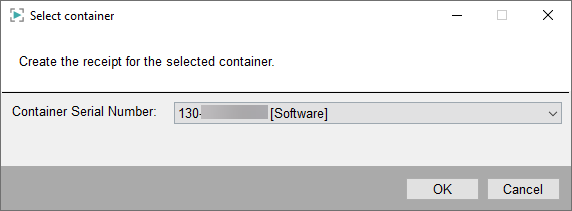
- Transfer the created receipt to a PC with an Internet access and continue with Step 4 - Upload Receipt (Online PC).