This chapter describes how to change CodeMeter runtime settings via the CodeMeter Control
Center.
Server Search List
On the clients that want to access the license server, add the address of the license
sever to the licensing configuration (Server Search List).
Open the WebAdmin via the CodeMeter Control Center by clicking on the
WebAdmin button at the bottom right. The WebAdmin web
page is opened.
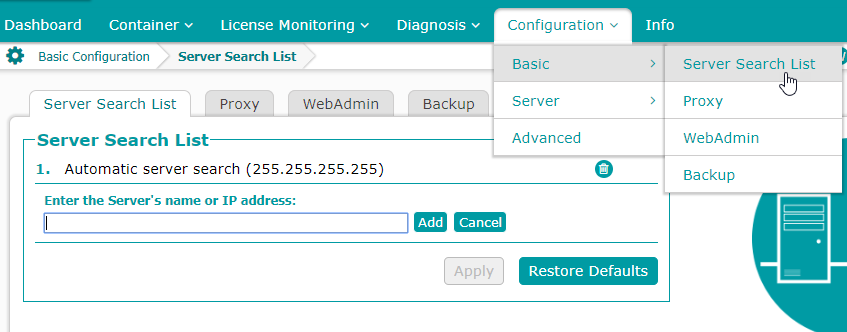
Open the Server Search List via the Configuration menu > Basic > Server Search List. Enter the IP address or the name of the license server and click
on Apply.
Now the client can access the license server.
Figure 1. WebAdmin: Configuration - Basic - Server Search List
License Access Permissions
License Access Permissions means that only the clients that were added to a list may
access the license server and allocate a license.
To assign restrictive License Access Permissions to clients, open the CodeMeter
Control Center.
Then open the WebAdmin via the CodeMeter Control Center by clicking on the
WebAdmin button at the bottom right. The WebAdmin web
page is opened.
Note:
If you do not assign License Access Permissions, everyone can access the
license server if the license server address was configured on a client -
see the step above.
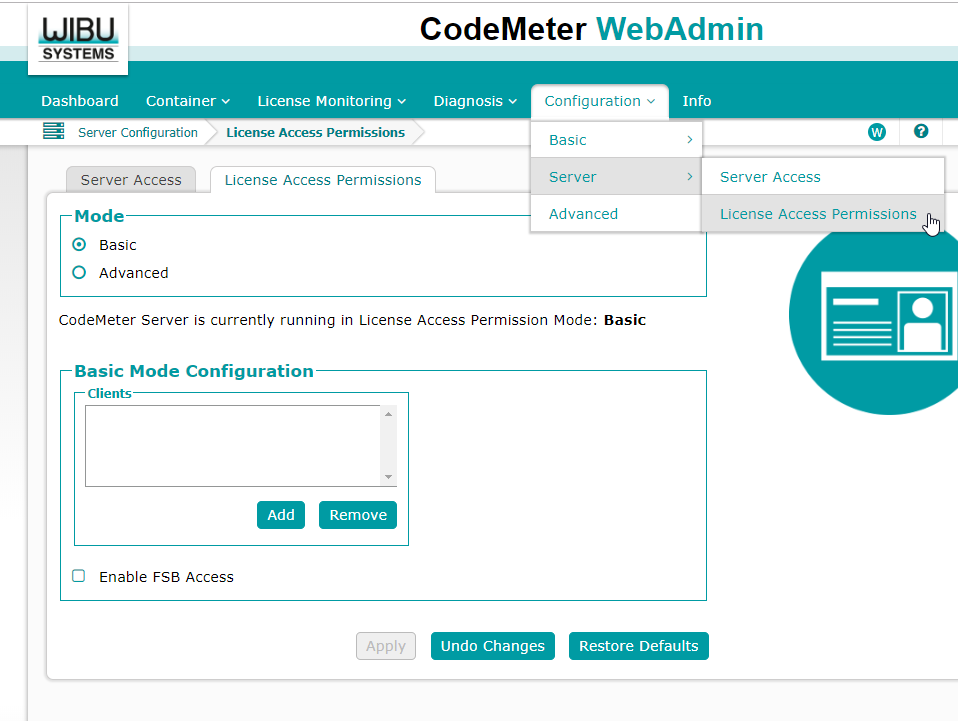
To assign License Access Permission, open the License Access
Permissions tab via Configuration > Server > Server Access Permissions.
Select the License Access Mode: Basic or Advanced.
The basic mode allows adding client computer and IP addresses for
accessing CodeMeter License Server.
The advanced mode allows, for example, specifying global and specific
access rules for accessing licenses and reserving license access for
single staff member or complete Active Directory groups.
Figure 2. WebAdmin: Configuration - Server - License Access Permissions
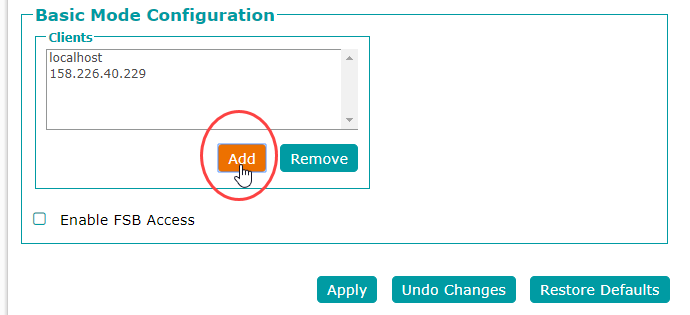
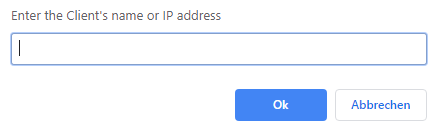
Click on the Add button and enter the IP address or the
name of the computer that should have access to the available licenses. Click
OK to add the name/IP address.
Figure 3. WebAdmin: License Access Permissions - Basic Mode
ConfigurationFigure 4. Enter the Client's name or IP address
field
Security Settings
To change license security settings, open the CodeMeter Control Center and the
WebAdmin via the CodeMeter Control Center (See the description at the beginning
of this chapter by clicking on the WebAdmin button at
the bottom right. The WebAdmin web page is opened.
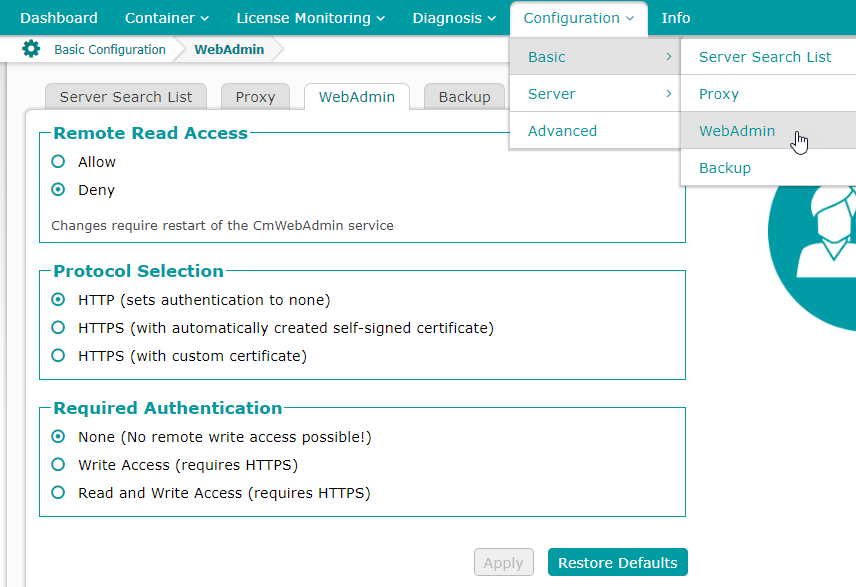
To change security settings, open the WebAdmin tab via the Configuration menu > Basic > WebAdmin:Figure 5. WebAdmin: Configuration - Basic - WebAdmin
Note:
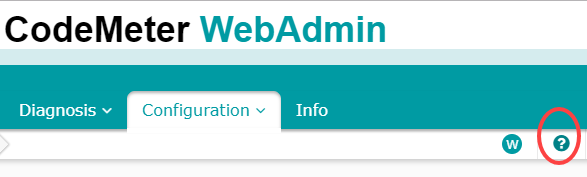
For more information, see also the WIBU Systems - CodeMeter 6.90 User Help. You
can open the help via the CodeMeter WebAdmin web page.
Figure 6. Open the CodeMeter 6.90 User Help