
Alarm shelving
This topic explains how operators temporarily suppress individual alert instances in WinCC OA without changing the underlying alert handler configuration.
What alarm shelving means
Alarm shelving is an operator-initiated, temporary suppression of individual alert instances at runtime.
It hides alerts from the operator view without deactivating the alert handler.
Shelved alerts remain active in the system. WinCC OA only filters them from the display.
Shelving operates on alert instances in their runtime state, not on alert handler configurations.
How alarm shelving works
The AlertService marks a shelved alert using an internal attribute and filters it from the standard alert display.
When an operator shelves an alert, the system starts a timer. After the timer expires, the alert is unshelved automatically.
A single shelving operation can affect multiple alerts.
The came and went parts of an alert pair are handled separately. Shelving a came alert does not automatically shelve the corresponding went alert.
When shelving is applied, all pending unacknowledged alerts on the target are acknowledged automatically.
The shelving state is not persisted. After a system restart, all alerts return to the unshelved state.
Operator workflow
In the Alert Event Screen, the operator right-clicks an alert to open the context menu.
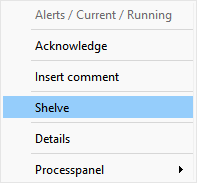
The operator starts the shelving action and can enter an optional reason text.
After shelving, the alert disappears from the active alert list.
The alert remains visible in the Shelved Alerts overview panel.
When the timer expires or the operator unshelves the alert manually, the alert returns to the active list.
The system logs the reason text and the operator name as a Security Event.
Shelved Alerts overview panel
The Shelved Alerts overview panel shows all currently shelved alert instances across the system.
It displays the shelving reason, the remaining time, and the responsible operator.
The panel allows manual unshelving of selected alerts.
It is accessible via a dedicated button in the Alert Event Screen.