
Import and export of video objects
This panel enables the import and export of video objects.
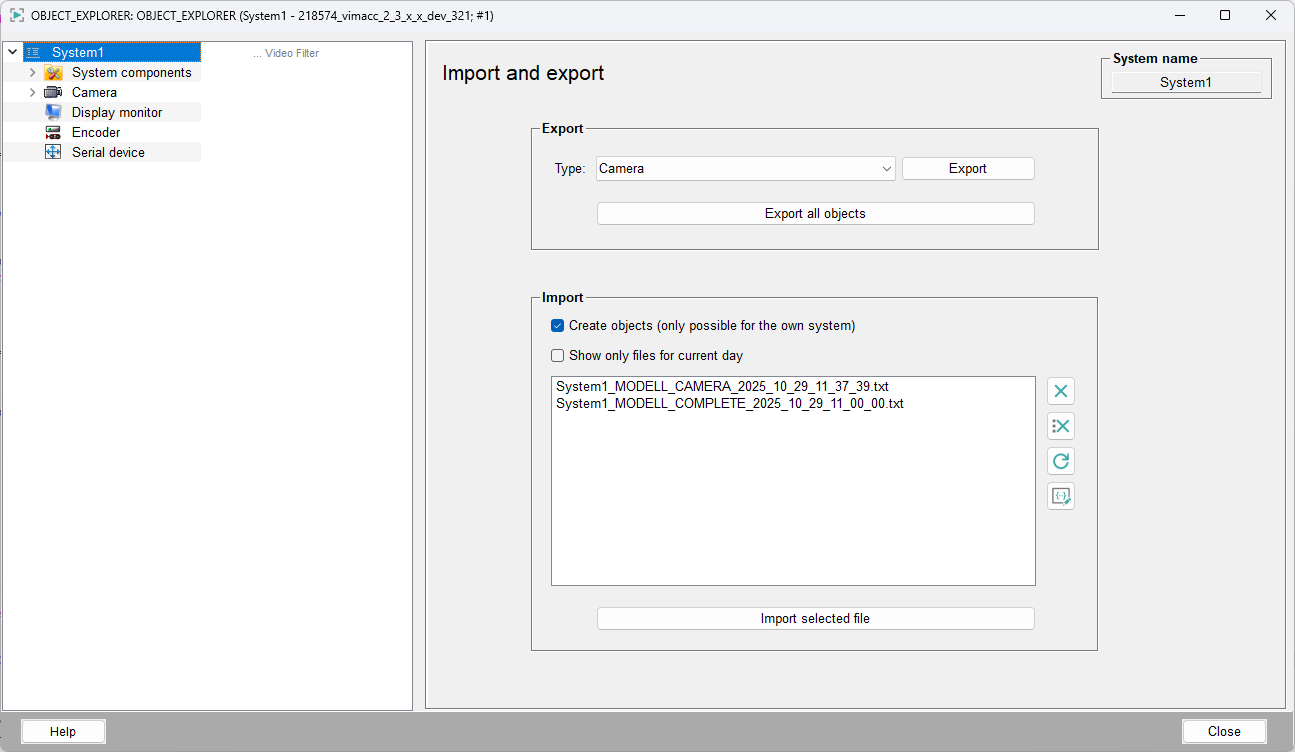
Export
The data is exported to a text file. Each configuration of an object is saved in a column of the file. A tab character is used as separator between the columns.
For export, select the type of object to be exported from the drop-down menu and then start the process by clicking the Export button. Alternatively, you can export all video objects at once by clicking Export All Objects.
The files are by default saved under <WinCC_OA_Proj>/data and named according to the following schema:
<System name>_MODEL_<object type>_<year>_<month>_<day>_<hour>_<minute>_<second>.txtImport
To import a saved configuration, select a file in the selection box. If you enable the create objects checkbox, new objects for files that do not exist in the WinCC OA data base are also created. This function can only create objects on the local system. If the checkbox is disabled, only configurations of existing objects will be imported.
File Structure
The export and import files are structured in the following way:
Rows:
The first row is meant for comments (they are ignored in case of an import and generated automatically in case of an export). Each successive row contains one video object.
Columns:
- The first column contains the system name of the datapoint
- The second column contains the name of the datapoint type of the datapoint
- The third column contains the object name or the datapoint name
- The fourth column contains the entry for
.object.device.definition - The columns 5-7 contain the entries for
.object.device.controller - The columns 8-10 contain the entries for
.object.device.link