
Combo box
Combo boxes allow you to choose only one option from a list of pre-defined alternatives. Since only the selected option is displayed once the selection has been made, a combo box does not take up much space in a system diagram.
Combo boxes are windows containing an arrow on the right side and displaying only one selected option. Clicking on the arrow opens a drop-down list containing all the possible options. An option is selected by clicking on it in the list. The list then closes and only the selected item remains visible.
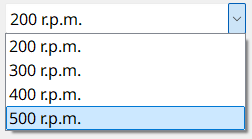
How to create a combo box
- Click on the combo box tool
 .
. - Click in the panel work area. Define the size.
- Open the Property Sheet.
- Enter the object name beside (Name).
- Enter the options using the List editor.
List Editor
A double-click on the combo box in the panel or clicking the ... button during engineering opens the List Editor.
Clicking on the Add After button places the new option after the option selected in the editor. Clicking on the Add Before button places the new option in front of the option selected in the editor. An option can be renamed by clicking on the Rename button. Clicking on the Remove button deletes the selected option.
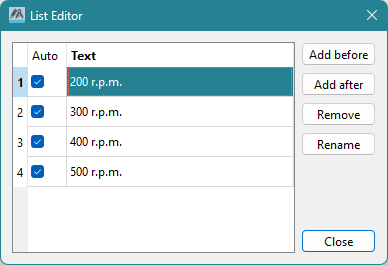
Example
In the following example, a valve VS01 can be closed, opened or adjusted to three different positions. The dpSet() function sets the original value of the datapoint variables "VS01.Adjustment" to the value given by the selected box option. It is assumed that the original values 0, 1, 2 and 3 are assigned to the different adjustment settings, and the options in the combo box are "Closed", "Open to 1", "Open to 2" and "Open to 3".
main()
{
  string txt;
  getValue("", "text",txt);
  if(txt == "Closed")
    dpSet("VS01.Adjustment:_original.._value ",0);
  else if(txt =="Open to 1")
    dpSet("VS01.Adjustment:_original.._value",1);
  else if(txt == "Open to 2")
    dpSet("VS01.Adjustment:_original.._value ",2);
  else if(txt =="Open to 3")
    dpSet("VS01.Adjustment:_original.._value",3);
}
Useful Notes
The text formatting for the options as well as the color of the combo box can be edited in the Property Sheet. For this and further combo box functions see also
The scriptReadWrite"editable" property must be set to "true" to enable the proper expansion of the drop-down list.
A combo box can be displayed horizontally (FALSE) or vertically (TRUE) via the vertical property of the Properties window.
The characters for the autocompletion have to be typed in quick succession since there is a time-out between the characters.