NGA
Synchronization of historical Values in the Database
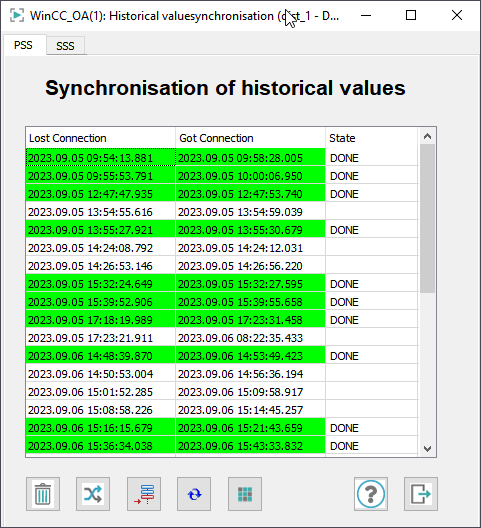
The following panel displays a list of all time ranges in which the connection was disconnected between:
- PSS and SSS
- PSS and PSS Backend/PostgreSQL Database
- SSS and SSS Backend/PostgreSQL Database
As well as the times given in the table, users can also define their own time ranges, in which the historical database values are synchronized.
- The synchronization of the historical data is only triggered in this panel. The synchronization itself is carried out by an NGA process, which runs in a specific time interval in the database.
- It may happen that alerts occur double after synchronization of historical values.
- dd
Historical synchronization
In the table, the times for a loss of connection and the establishing of a connection respectively are displayed, and the current synchronization status (see Status of the Synchronization).
The current synchronization status is additionally displayed via the colour of the row of a time interval:
- Green: Synchronization was successfully carried out.
- Yellow: Synchronization is running.
- Red: Synchronization has failed.
-
White: Time ranges that have not yet been selected by the user.
Important:If values are missing or invalid values are shown after synchronising the historical data, use the configuration entry discardOldValues = 1 in the [event] section of the config file. This means that missing or invalid values are disregarded.
The buttons have the following meaning:
-
 - deletes the highlighted time ranges
from the table.
- deletes the highlighted time ranges
from the table. -
 - starts a historical database
synchronization for the selected time range.
- starts a historical database
synchronization for the selected time range. -
 - opens the window for the free
definition of a time range (see below).
- opens the window for the free
definition of a time range (see below). -
 - updates the table.
 -
 - opens the NGA Importer
panel.
- opens the NGA Importer
panel. -
 - opens this chapter of the WinCC OA online help.
 -
 - closes the panel for the
historical database synchronization.
- closes the panel for the
historical database synchronization.
Freely definable time range
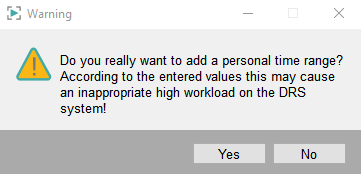
When you click the button, the following warning is shown. If
you want to add a time range, click Yes and the panel is
opened - see below.
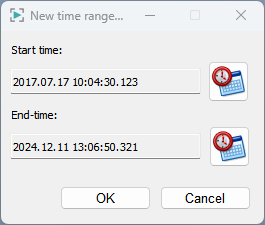
Via this panel, it is possible to set a freely definable time range and then insert it into the table for historical database synchronization.
The synchronization of historical data with freely definable time ranges must be manually activated by the user.
Click on the  button in order to
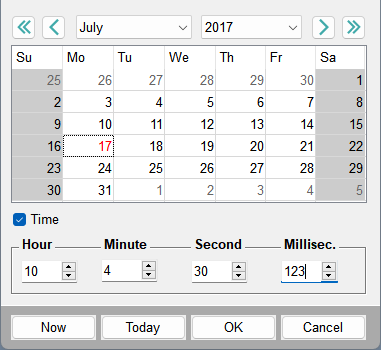
define a start time or end time for the time range. This opens the WinCC OA calendar panel, with the help of which the desired dates
and times can be selected.
button in order to
define a start time or end time for the time range. This opens the WinCC OA calendar panel, with the help of which the desired dates
and times can be selected.