
STD_PANELS
These symbols are used to open various WinCC OA standard panels. Please see the respective chapters of the documentation for a detailed description.
The buttons with PT_* are used to create a Panel topology. For a correct use read the chapter Panel topology and group alerts at first.
| Symbol | Symbol name | Description |

|
as_button | Opens the Alert panel; authorization: operator |

|
as_button_Conf | Opens the alert panel with a specific configuration; authorization: operator |

|
es_button | Opens the Event panel; authorization: operator |

|
es_button_Conf | Opens the event panel with a specific configuration; authorization: operator |

|
help_button_large | Opens the Online Help at the place of the specified keyword. |

|
help_button_small | Opens the Online Help at the place of the specified keyword. |

|
navigation | Opens the navigator (see Zooming/Panning) for a defined module. If the panel navigator.pnl is opened without a parameter $moduleName or with moduleName=="" or the module name does not exist, then myModuleName() is used, otherwise the module of the parameter $moduleName is defined. |

|
note_info | Opens the notice board. It provides an information platform for the exchange of important messages between the system users. |

|
PT_cascade0_1 | Start cascade of Panel topology template 1 |

|
PT_cascade0_2 | Start cascade of Panel topology template 2 |

|
PT_cascade1 | Opens the configuration panel of the Panel topology |

|
PT_cascade2 | Opens the Configuration panel of the Panel topology |

|
PT_down1 | Navigation button of the Panel topology (for user defined templates) |

|
PT_home1 | Navigation button of the Panel topology (for user defined templates) |

|
PT_jump | Opens the configuration panel of the Panel topology, for defining the panel to jump at. |

|
PT_jumpDown | Opens the configuration panel of the Panel topology, for defining the panel to jump at. |

|
PT_jumpLeft | Opens the configuration panel of the Panel topology, for defining the panel to jump at. |

|
PT_jumpRight | Opens the configuration panel of the Panel topology, for defining the panel to jump at. |

|
PT_jumpUp | Opens the configuration panel of the Panel topology, for defining the panel to jump at. |

|
PT_left1 | Navigation button of the Panel topology (for user defined templates) |

|
PT_navi_as | Alert panel for the navigation bar of the Panel topology; depending of the authorization (at leastoperator) enabled. |

|
PT_navi_gq | Acknowledge all for the navigation bar of the Panel topology; depending of the authorization (at least operator) enabled. |

|
PT_navi_hlp | Online help for the navigation bar of the Panel topology; depending of the authorization (at least operator) enabled. |

|
PT_navi_hq | Horn acknowledge for the navigation bar of the Panel topology; depending of the authorization (at least operator) enabled. |

|
PT_navi_sm | System management for the navigation bar of the Panel topology; depending of the authorization (at least "para") enabled. |

|
PT_navi_vt | Variable Trend for the navigation bar of the Panel topology; depending of the authorization (at least operator) enabled. |

|
PT_naviCompact | Button containing the navigation Home, left, right, up, down. |

|
PT_panelOn | For configured Panel topology. The button displays a modal childpanel with the current selected panel. You can select another panel for opening in the Panel topology with OK or double clicking. Childpanels are not displayed in this feature. |

|
PT_panelring | Opens a combo box for panel selection (up to 20 panels). CAUTION: Only to be used in the navigation bar of the Panel topology. You have to modify the template bars (delete/move/decrease buttons and insert the panel ring) in <wincc_oa_path>/panels/para/templates/naviPanel* |

|
PT_right1 | Navigation button of the Panel topology (for user defined templates) |

|
PT_sum1 | Opens the panel for directly selection of the Panel topology, for defining the panel with the group alerts. |

|
PT_sum2 | Opens the panel for directly selection of the Panel topology, for defining the panel with the group alerts. |

|
PT_sum3 | Opens thepanel for directly selection of the Panel topology, for defining the panel with the group alerts. |

|
PT_sum4 | Opens the panel for directly selection of the Panel topology, for defining the panel with the group alerts. Colors of reference are editable. |

|
PT_sum5 | Opens the panel for directly selection of the Panel topology, for defining the panel with the group alerts. |

|
PT_sumq | Opens the panel for directly selection of the Panel topology, for defining the panel with the group alerts. |

|
PT_up1 | Navigation button of the Panel topology (for user defined templates) |

|
PT_user | Button for changing the user without restart of the module (VISION). This button can be used in the navigation bar of the panel topology. |

|
StartExcelReportButton | Button for opening the Excelreport (see WinCC OA Report) |

|
sys_button | Opens the System management panel; authorization: para |

|
trend_button | Opens the Variable trend display panel.; authorization: operator |

|
trend_button_Conf | Opens the Variable trend display in a specific configuration. The desired configuration (e.g. VarTrend_0001) must be specified in the reference editor. Authorization: operator |

|
zoomIn | Zoom the panel with the current factor multiplied by 1.5 (depending on maxZoomFactor) |

|
zoomOrig | Resizes the panel to original size |

|
zoomOut | Zoom the panel with the current factor divided by 1.5 (depending on minZoomFactor) |
How to add a standard symbol to a panel is described in the following.
-
Select the WinCC OA object catalog in the GEDI via View > Catalogue > <version_path>.
-
Select the object catalog STD_PANELS.
-
Select e.g. the object AESRow and add it via drag and drop to the panel. The following configuration panel is opened for the configuration of the object:
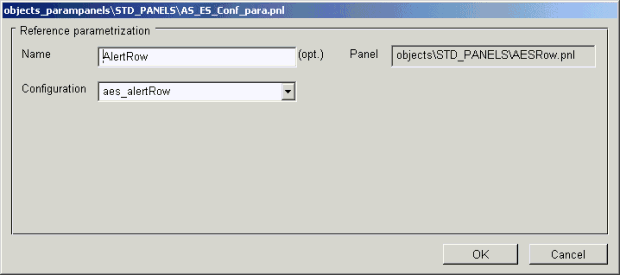
You can select a configuration via the panel. Configurations can be created via the table configuration panel of the alert and event panel (the panel is opened via System management > Settings > AES - Row/Screen). If you e.g. want to change the size of the AlertRow symbol you can do it via overriding in the GEDI. For more information on overriding see chapter properties of references and overridden configuration.
-
Define a name for the reference.
-
Add the reference to the panel via the OK button.
-
Save the panel and open it. The current alerts are shown:
