
STD OBJECTS
The former ActiveX symbols have been replaced by standard objects. The standard objects are installed by default. Not all former ActiveX STD objects are available as standard objects yet. You can find the available objects in the list below:
Please note that all still existing 32bit ActiveX objects only remain for compatibility reasons and must not be used anymore.
| Symbol | Symbol name | Description |
|---|---|---|

|
3StateSwitch | Switch for three different states |

|
4StateSwitch | Switch for four different states |

|
ChartPieVals | Value display as a pie chart (value in %) |

|
bar_1 | Displays a float/int value as a vertical bar |

|
CircularAnalog | Analog circular display |

|
CircularAnalog_2 | Analog circular display |

|
CornerAnalog | Analog corner display |

|
KnobSelector | Circular adjuster |

|
NumericLED_10 | Numeric LED display for 10 digits (2 of which decimal places) |

|
NumericLED_4 | Numeric LED display for 4 digits (2 of which decimal places) |

|
NumericLED_6 | Numeric LED display for 6 digits (2 of which decimal places) |
Three example standard object reference panels are described below.
In all reference editors press OK to save and Cancel to discard changes.
4StateSwitch
Displays four different states. When you drag the "4StateSwitch" out of the catalog and into the panel, the following reference editor is opened:
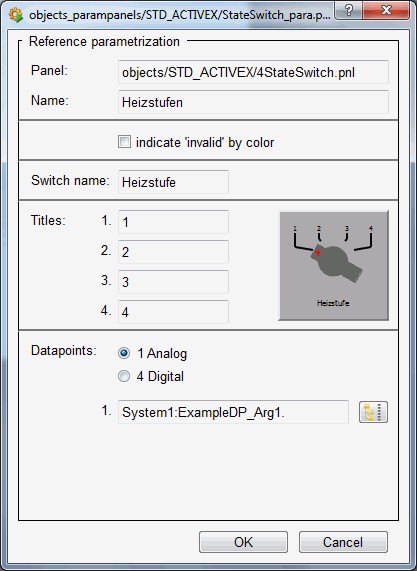
This panel displays the following:
Panel : Grayed-out text field indicating the path to the reference.
Name : Enter the specific object name used to address the object in scripts.
indicate "invalid" by color: When selected, this option displays a set invalid bit (invalid original value) by changing color (to light blue - invalid).
Switch name : Text to be displayed below the switch.
Titles 1, 2, 3, 4 : Enter text or numbers (e.g. Min, Max, 1,2, etc.).
Datapoints Analog/Digital : Four datapoint elements must be entered for digital values. You only need to enter one datapoint element for analog values.
The datapoints themselves must be selected using the datapoint selector button  .
.
bar_1
When you insert the bar_1 symbol into a panel, the reference editor is opened. You can also launch this editor from the property sheet.
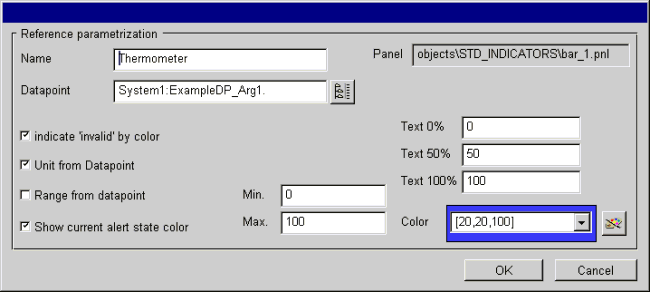
This panel displays the following:
Name: Enter a name for the object so that you can address it in a script.
Datapoint: Specify a datapoint element or use the DP selector to select one.
indicate "invalid" by color: If selected, this option the color of the bar changes to light blue (color _invalid) if the original values are invalid (invalid bit set).
Unit from Datapoint: Uses the unit from the _common config. Otherwise you can indicate a unit in the text field.
Range from datapoint: If you have configured a range for your datapoint element, if selected this range is used, otherwise you can specify Min/Max limits.
Show current alert state color: If an alert handling procedure has been configured for the DPE, the color of the bar changes to the alert color if an alert is pending. Otherwise the color of the bar stays the same.
Min, Max: Here you can enter limits for the display range.
Text 0%, Text 50%, Text 100%: Enter a text or a number for the display corresponding to the percentages (empty, half, full, 0, 50, 100, etc.).
Color: Specify a color or color string or select a color using the color selector. The Color selector is opened by pressing the button to the right.
In the Vision module, clicking on this STD_symbol bar_1 opens the following information panels:
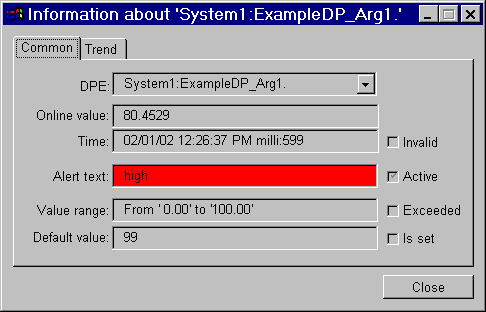
For DPEs, you can select between datapoint, alias and description from a combo box. The following are also displayed:
online value and its unit. The "Invalid" check box shows whether an invalid bit is set, thus rendering the original value invalid.
source time
alert text of alert handling; the flag indicates whether an alert handling is configured.
range and violation of this range (range exceeded).
default value and whether a default value has been set (e.g. for range exceeded).
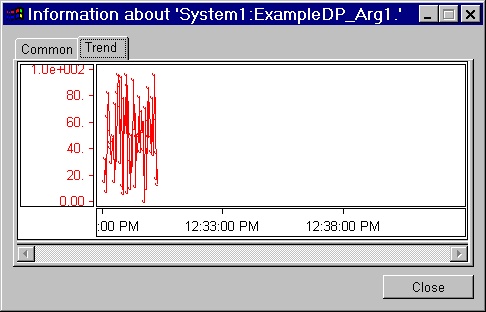
On a second tab you can observe the trend display of the related online value (e.g. you can use a STD_SIMULATOR to send a value to the same DPE):
CircularAnalog
Typical circular display, e.g. revolution counter or speedometer.
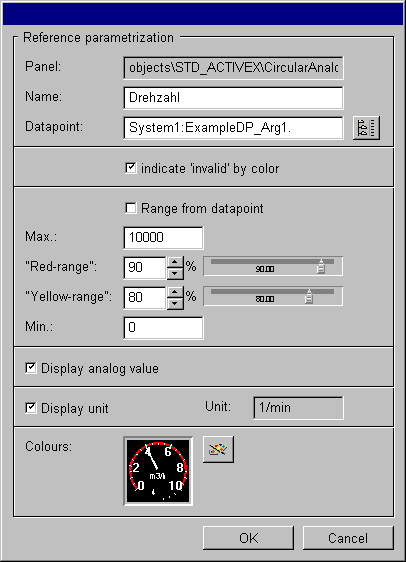
This panel contains the following fields and buttons:
Panel : Displays the directory path to the reference.
Name : Enter the specific name of the object.
Datapoint : Use the DP selector to select the desired datapoint.
indicate "invalid" by color: When selected, displays a set invalid bit (invalid original value) by changing color (to light blue - invalid).
Range from datapoint : If you have created a range for the datapoint, if selected it is used as a
limit, otherwise the value for Min and Max.
Max: The upper limit to be used.
Red-range : Set the red range for the display either by using the spin buttons or the slider.
Yellow-range : Set the yellow range for the display either by using the spin buttons or the slider.
Min: The lower limit to be used.
Display analog value: If selected, the current value is displayed below the pointer display.
Display unit: Indicates the unit for the datapoint element (see Config _common).
Colors: Button opens an editor for customizing pointer color, background color and text color.
Numeric_LED
Digital display of a reading.
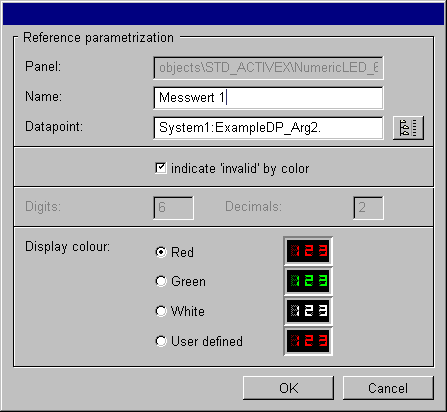
This panel contains the following fields and buttons:
Panel : Displays the directory path to the reference.
Name: Enter the specific name of the object.
Datapoint: Use the DP selector to select the desired datapoint.
indicate"invalid"by color: When selected, displays a set invalid bit (invalid original value) by changing color (to light blue - invalid).
Digits: Indicates the maximum permissible number of places before the decimal point for the DPE original value.
Decimals: Indicates the number of places after the decimal point for the DPE original value. This decreases the number of places allowed before the decimal point.
Displaycolor: Select red, green or white from the radio box or select User defined to open a color customization dialog box.