Database Restore Panel

This chapter describes the NGA PostgreSQL® restore panel.
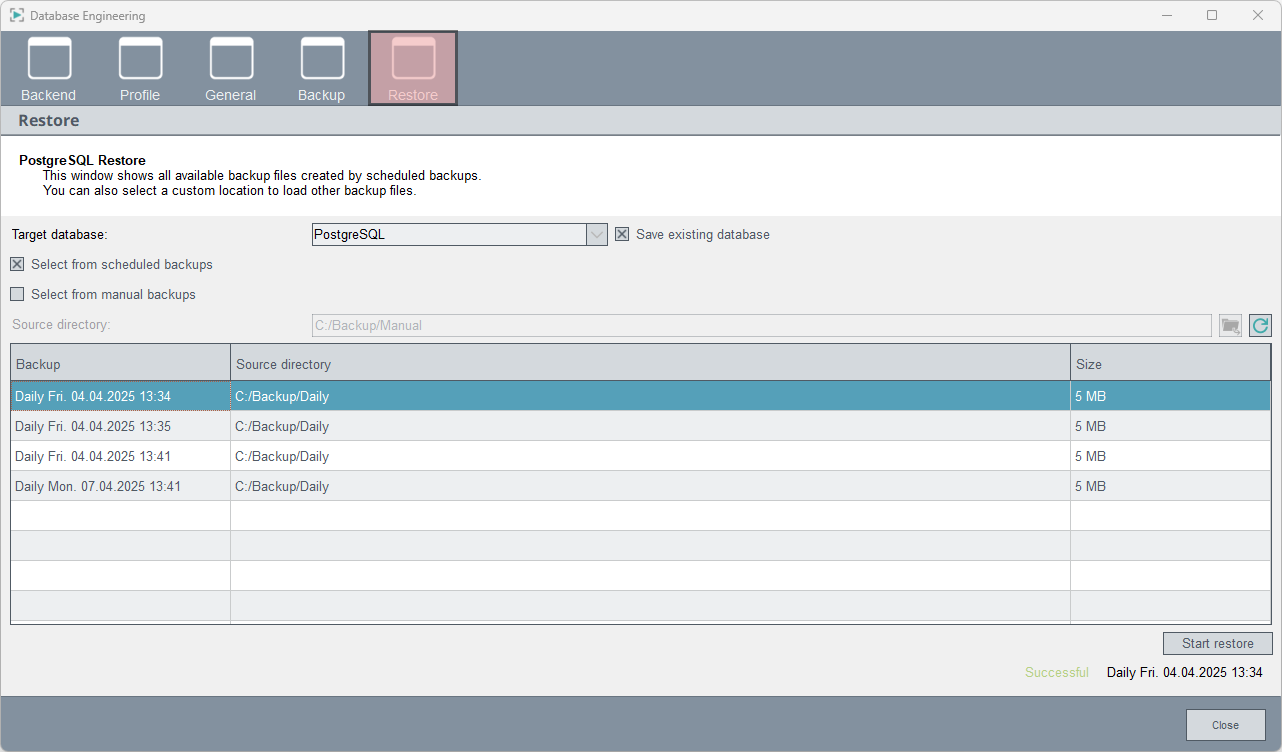
You can access the restore panel via System Management > Database > Database Engineering > Restore tab:
Figure 1. Restore Tab

This panel enables the manual execution of database restore operations. Currently only the PostgreSQL® database managed by WinCC OA is supported. The Target database drop-down list allows you to select the target database (using the backend name) and sets the context for all other configurations in the panel.

For redundant projects, the restore operations are performed for each side by selecting PostgreSQL for the left side and PostgreSQL_2 for the right side from the drop-down list:
Figure 2. Select the database

The restore operations are carried out by a special manager that is located on the same side as the selected database.

Configuration

This chapter describes the configuration of the restore panel.

If you activate the Save existing database checkbox, the database directory is renamed before the restore, otherwise it is deleted.
Figure 3. Save existing database

The location of the managed PostgreSQL® database directory is:

<project path>/db/wincc_oa/localdb/postgresql/16/pgdata 

The copy is called:

<project path>/db/wincc_oa/localdb/postgresql/16/pgdata.bak

This copy makes it possible to quickly undo the restore (in the event of an error during the restore operation or any other problem discovered later) by simply renaming the directory back to the original name (this is a manual process). The renamed directory can be deleted manually.
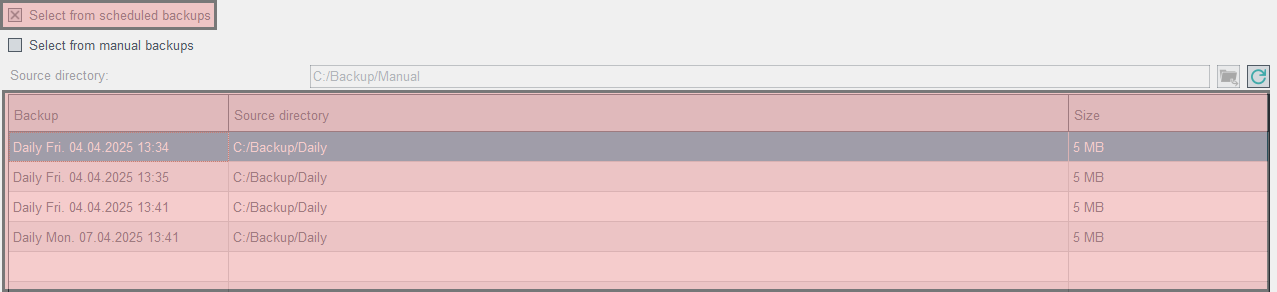

If you activate the Select from scheduled backups option, the list of available backups is filled with the daily, weekly and monthly database backups that are currently in the configured storage locations for the daily, weekly and monthly schedules:
Figure 4. Select from scheduled backups
To restore a manual backup or an automatic backup that is to be restored to a location other than the storage location, use the Select from manual backups option. Enter the path of the source directory manually or by using the file browser button:
Figure 5. Select from manual backups
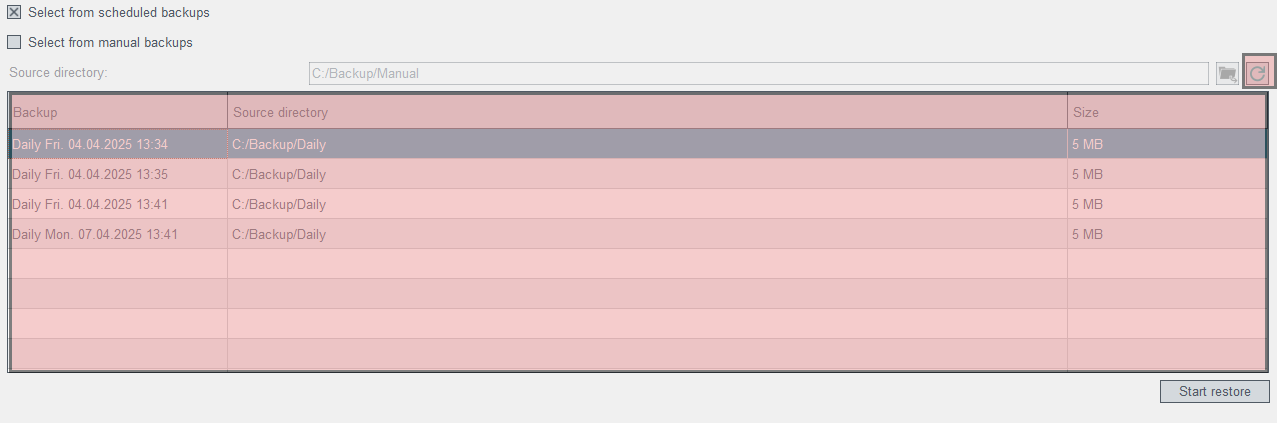
If you click on the Refresh button, the table is filled with the backups found in the configured source directory:
Figure 6. Backups in the configured source directory

Restore

This chapter describes the restore process.
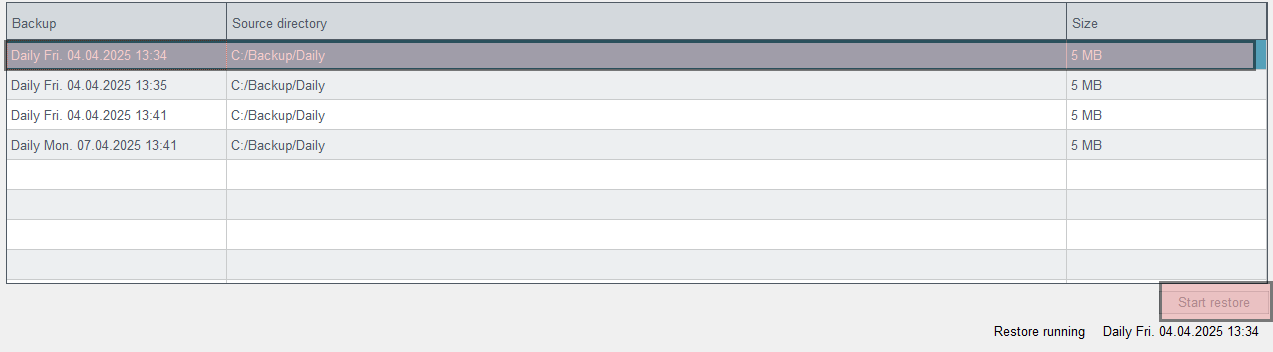
If you click on the Start restore button, the restore process of the selected backup (highlighted line in the list of available backups) is started.
Note:
As a result of the database shutdown, when a restore is triggered, severe messages appear in the log that the DB connection has been lost. This can be ignored and will be suppressed in a later patch version.
Note:
After the patch installation for an existing REDU project, both hosts must be restarted once.
Figure 7. Start restore
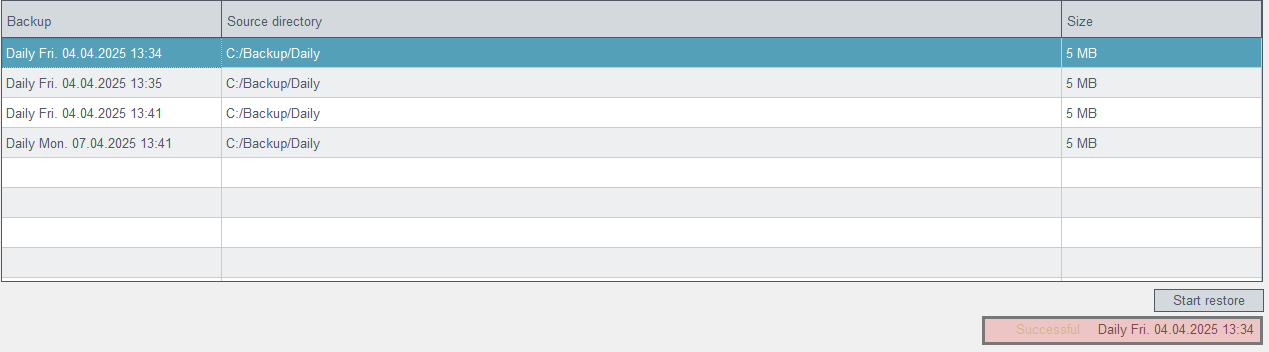
The PostgreSQL® database managed by WinCC OA is automatically stopped and restarted as part of the procedure. The success status of the last recovery process performed is displayed at the bottom:
Figure 8. Restore status