
Remote Project Administration
Remote Project Administration is an optional component of the WinCC OA setup that lets you upload, run, configure, and monitor WinCC OA projects on a server from a web browser.
Manage your projects on the server. Directly in the browser.
Remote Project Administration brings the web-based project administration known from WinCC OA on Industrial Edge to regular Windows and Linux installations. You select it as a component during the installation, control its services from a small Welcome Panel, and do everything else in the browser.
Core principles
Part of the setup – Remote Project Administration is a selectable component of the WinCC OA setup for Windows and a separate package for Linux. It is installed only when you select it or when you choose a full installation.
Browser-based – Projects are uploaded, started, stopped, configured, and diagnosed in the web interface. The same pages are used as on Industrial Edge.
One-click service control – A native Welcome Panel starts and stops the services, switches autostart on or off, shows the connection details, and opens the web interface. It also works while the services are stopped.
One installation per version – Every installed WinCC OA version gets its own Remote Project Administration installation, configuration, and service.
Deploy and run projects on a server
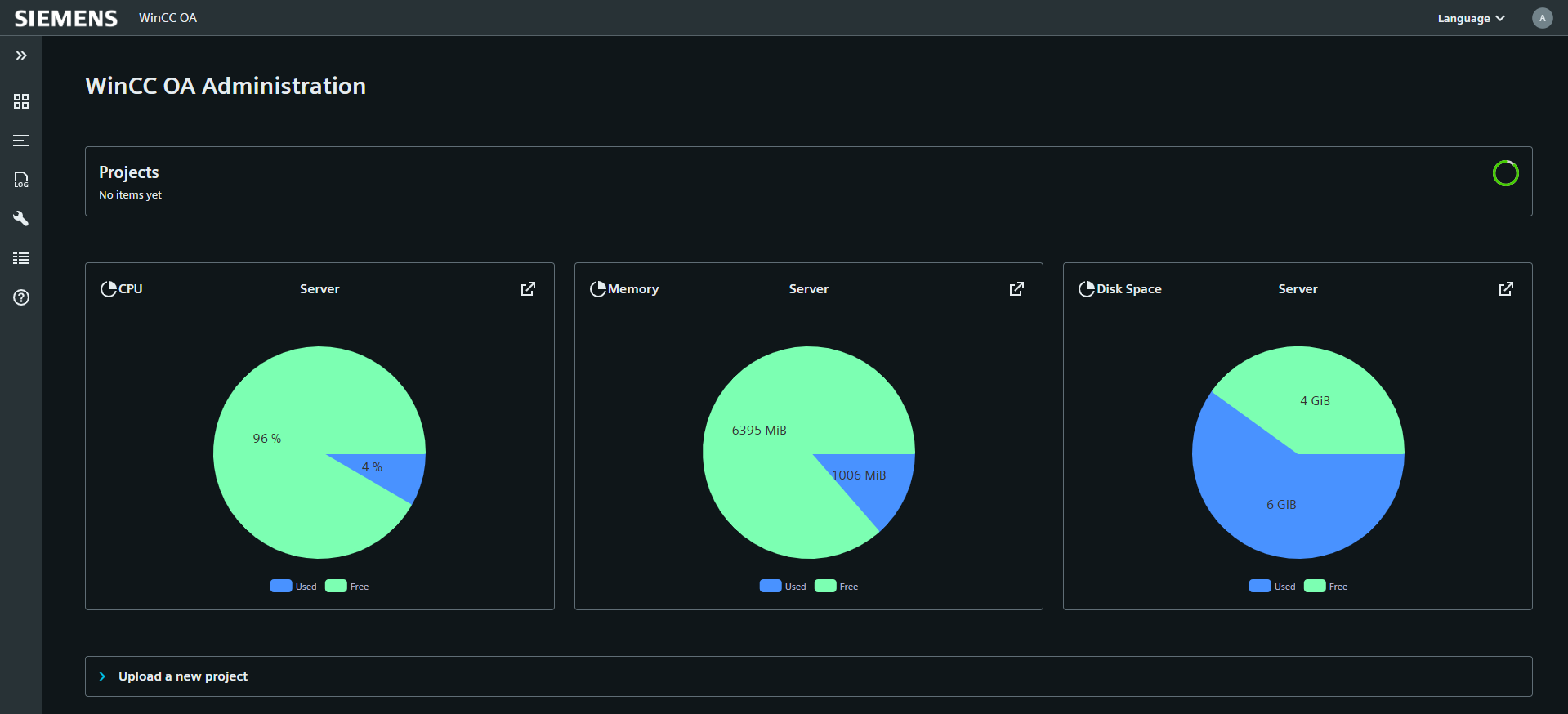
Upload a packed project to the server, start it, and watch the server load – all from the Project Administration page.
- Drag-and-drop upload – project archives in the formats .zip, .tar.gz, .tar, .gz, and .tgz, or the demo project with a single click on Demo Project
- Project row actions – start, stop, open the configured project link, or delete the project directly in the project list
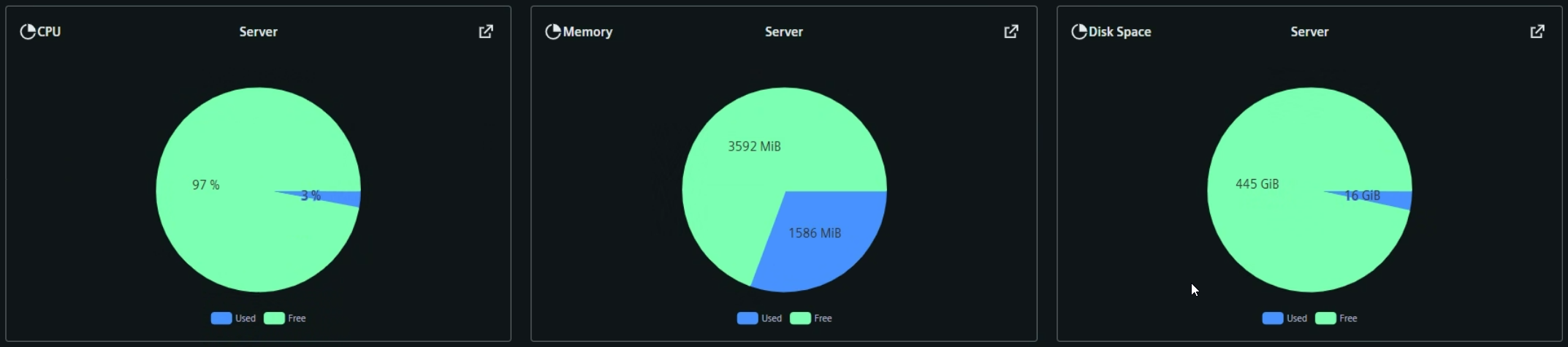
- Live server charts – CPU in percent and memory in MiB over time, disk space in GiB as pie chart, each with the available limit
- Project download – download the project including all changes made during online engineering
Diagnose and maintain running projects
When a project is running, the web interface gives you the tools you would otherwise use directly on the server: the console, the log files, and the project configuration.
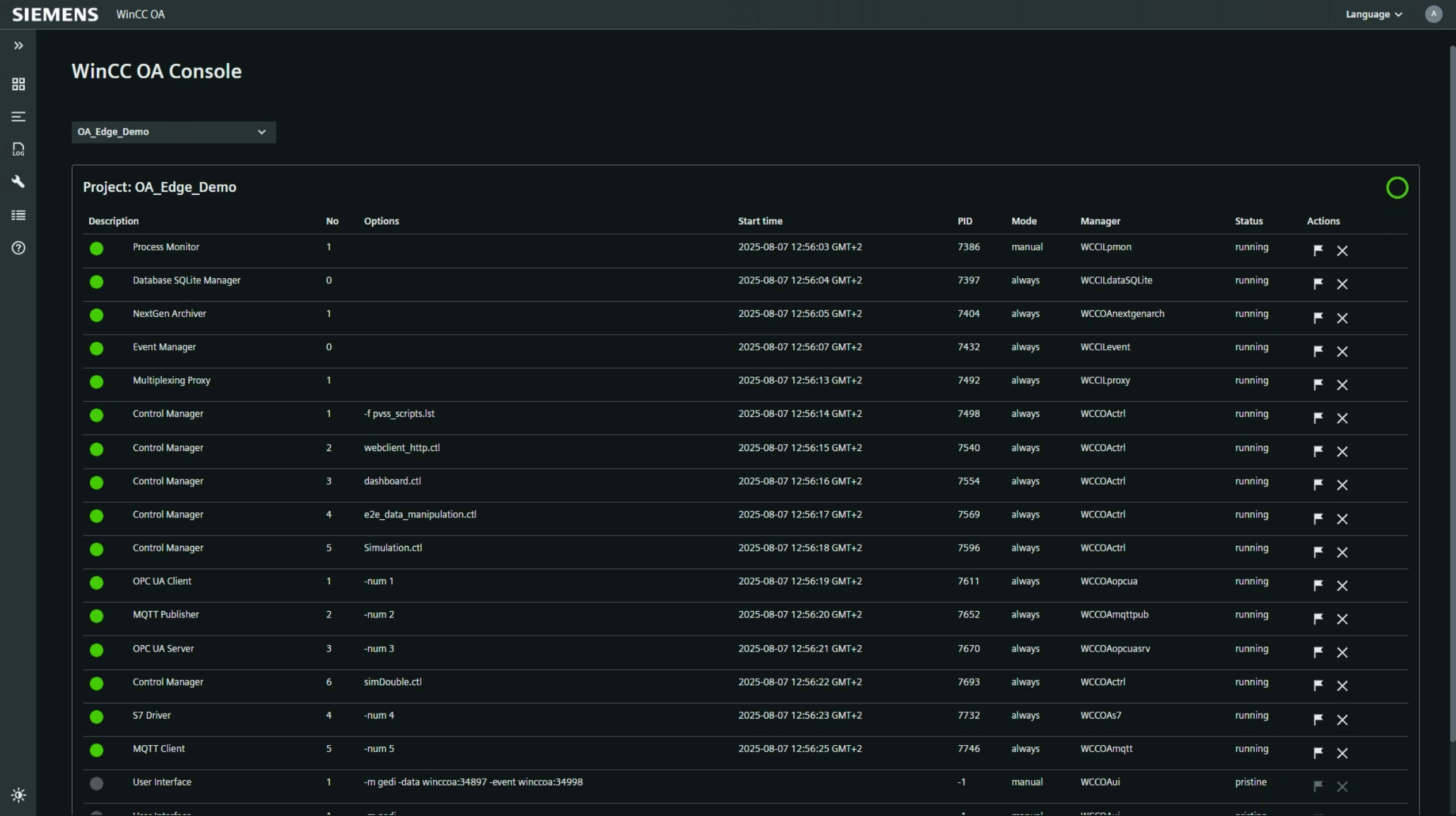
- Project Console – start, stop, add, reorder, and delete managers, with start time, PID, start mode, and status of every manager
- Debug flags – activate and clear debug flags per manager from the ⋮ menu
- Log viewer – live log output filtered by INFO, WARNING, SEVERE, and FATAL, plus download of the WinCC OA and system log files
- Project Configuration – six tabs: Config, ASCII Import, ASCII Export, Certificates, Backup, and Restore
Getting started
- Installing Remote Project Administration – Install the component on Windows or Linux.
- Welcome Panel – Start the services and open the web interface.
- Web Interface – Manage your projects in the browser.
- Connection Settings – Default ports and configuration directories.