Administration Interface
The WinCC OA Administration Interface on Edge devices allows you to upload and monitor your WinCC OA projects on your Edge devices.
You can open the WinCC OA Administration Interface by connecting directly to the Edge device through your local Industrial Edge Management Interface. To access the Administration Interface, you need to log in (see Login). The initial user credentials are available here.
View Menu
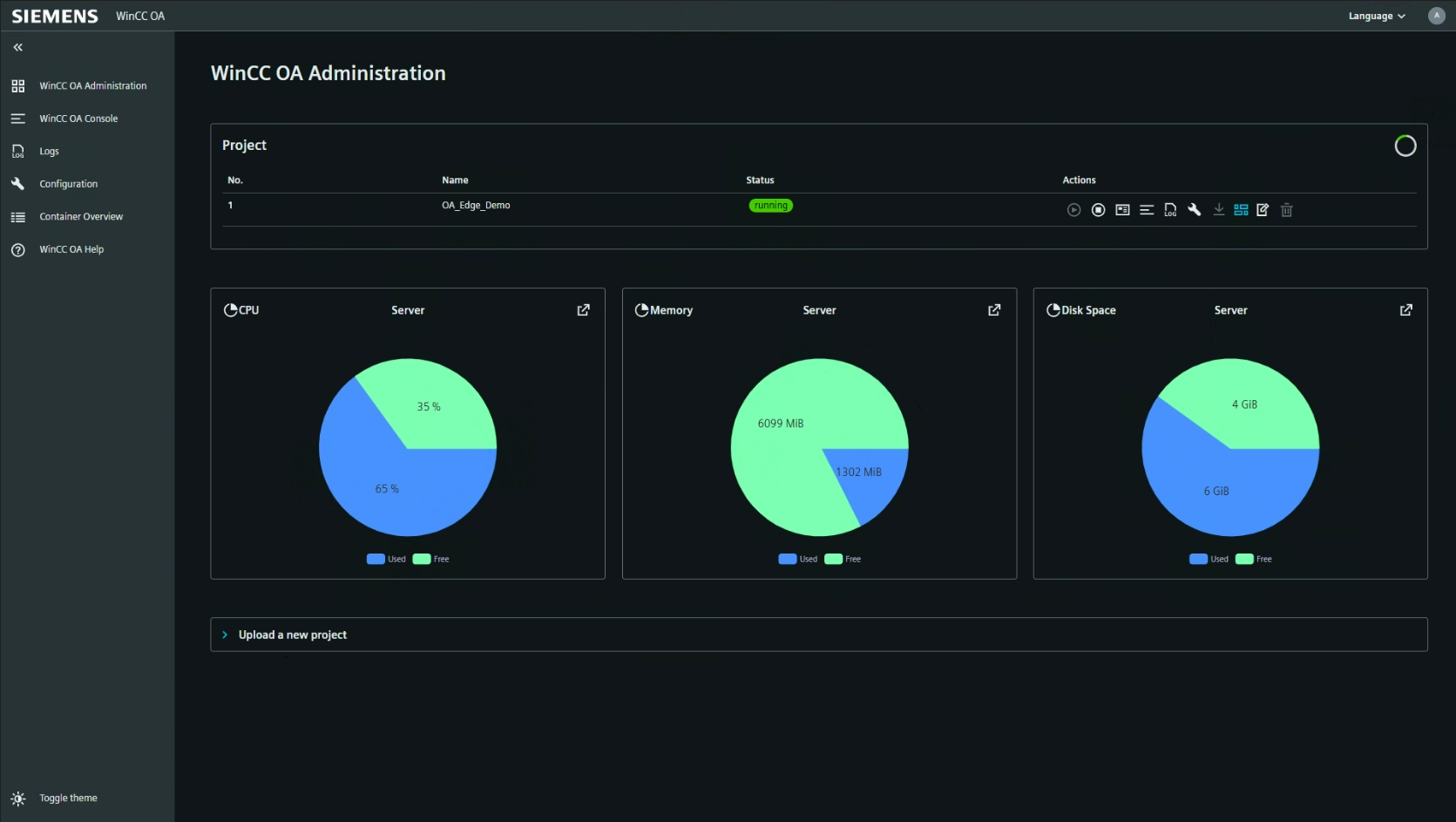
The Administration Interface provides the following pages:
 Overview – Shows a general overview of the Edge device. This main page
displays the available
projects on the device, device performance indicators, and provides the option to upload new projects to the Edge device.
Overview – Shows a general overview of the Edge device. This main page
displays the available
projects on the device, device performance indicators, and provides the option to upload new projects to the Edge device. Console – Opens the integrated
version of the WinCC OA Console. You can also
set debug flags for specific WinCC OA managers in
your system.
Console – Opens the integrated
version of the WinCC OA Console. You can also
set debug flags for specific WinCC OA managers in
your system. Logs – Access the project log
files provided by WinCC OA. Use this section to
analyze your project's behavior and check for debugging output.
Logs – Access the project log
files provided by WinCC OA. Use this section to
analyze your project's behavior and check for debugging output. Configuration – Direct access to the configuration files of your WinCC OA
project(s).
Configuration – Direct access to the configuration files of your WinCC OA
project(s). Container Overview – Provides a detailed overview of the performance indicators for your Edge device, including a list of
running processes and their current loads.
Container Overview – Provides a detailed overview of the performance indicators for your Edge device, including a list of
running processes and their current loads. Help – Access help and support resources for the Administration
Interface.
Help – Access help and support resources for the Administration
Interface. Theme Switcher – Switch between light and dark mode for the interface.
The theme switcher is located at the bottom left corner of the navigation
bar.
Theme Switcher – Switch between light and dark mode for the interface.
The theme switcher is located at the bottom left corner of the navigation
bar.
Login
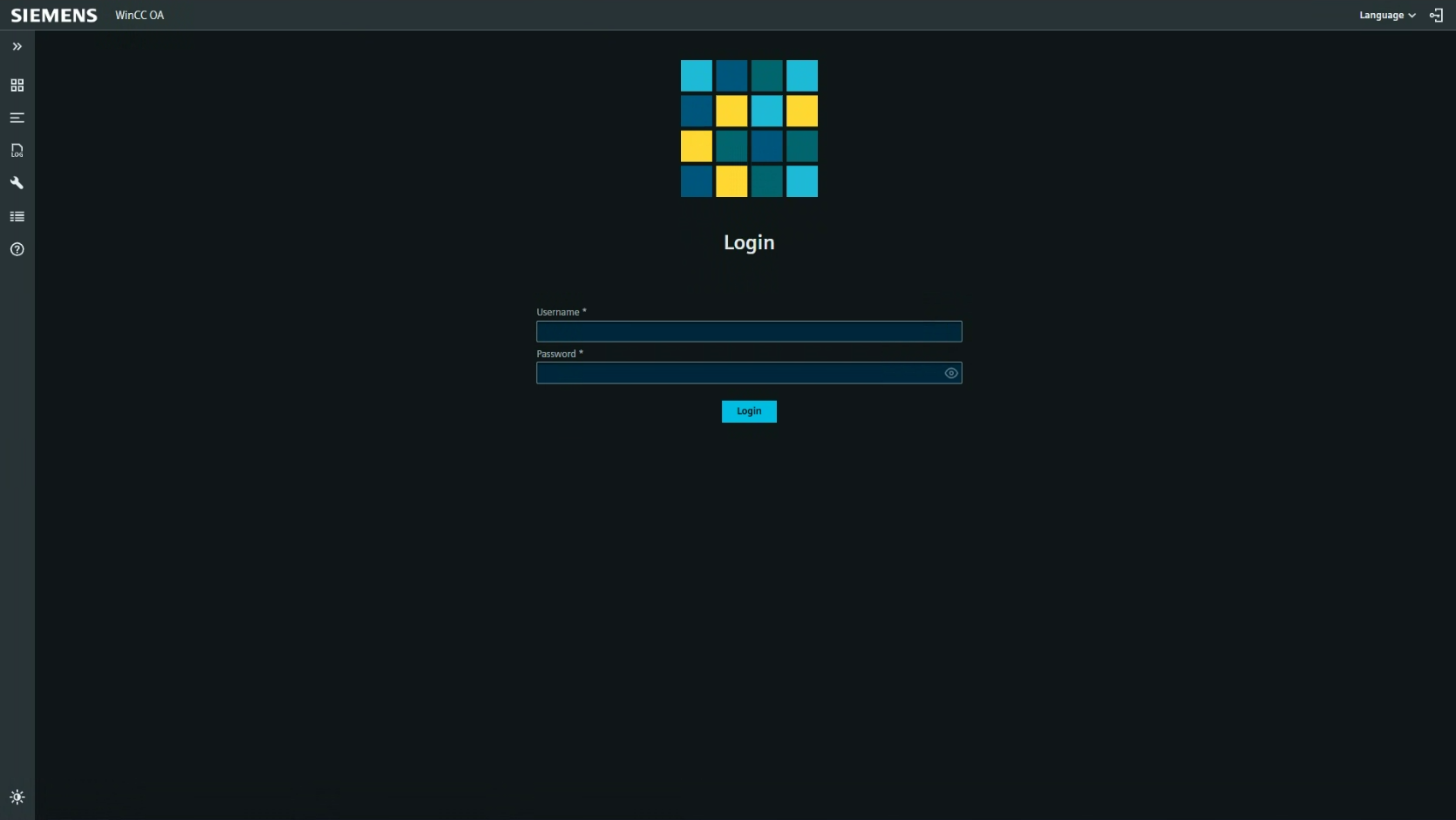
To access the WinCC OA Administration Interface, you must log in. By default, a predefined user account is available with both the username and password set to admin. After your first login, you are required to change the password for this default account to ensure secure access. To log in, enter your credentials and click the Submit button.
Projects

The Projects section shows a list of available projects on the device, including their status and available actions.
- No. – Project index number.
- Name – Name of the project.
- Status – Current status of the project (e.g., stopped).
- Actions – Actions you can perform on each project:
- Start Project
- Stop Project
- Project Details - Provides inforation about the starting time of the project and the overall runtime.
- WinCC OA Console - Opens the Console for the project, see also WinCC OA Console
- LogViewer - Opens the Log overview for the project, see also Logs
- Configuration - Opens the Configuration interface for the project, see also Configuration
- Download Project - Downloads the project. This also saves all data that has been changed during online engineering and is therefore crucial for the Project Update Process.
- Go to Link - Opens the link that has been configured for the project, see Update Link below. By default this will open the Dashboard of the project.
- Update Link - Allows to define a link for the project where additional information can be provided. By default the link directs to the Dashboard view of the project.
- Delete Project
Device Performance
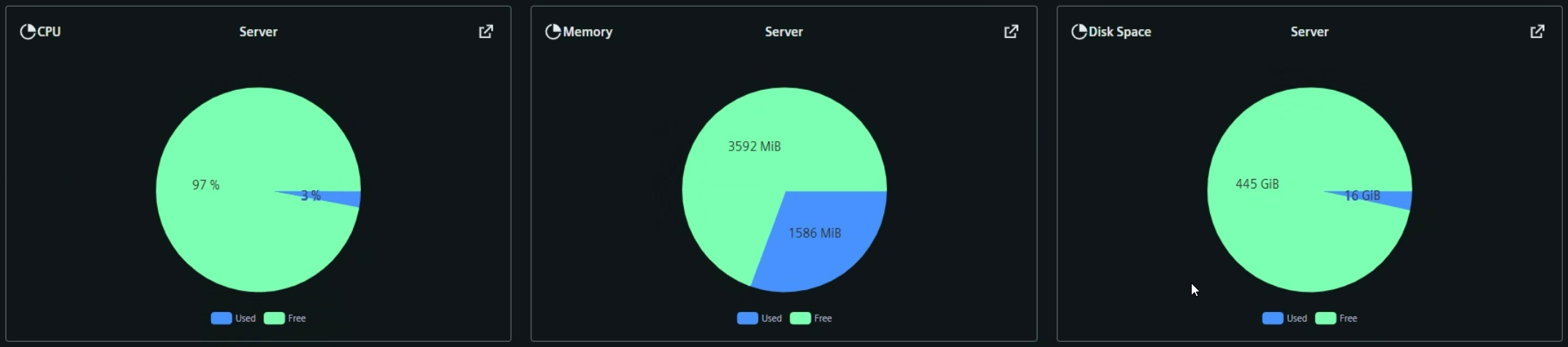
The Device Performance section provides real-time indicators for CPU, memory, and disk space usage on the server. Each indicator is shown as a pie chart displaying used and free resources.
- CPU – Percentage of CPU used and free.
- Memory – Amount of memory used and free (in MiB).
- Disk Space – Amount of disk space used and free (in GiB).
Project Upload
The Project Upload section lets you upload a new project to the device. Supported file extensions are: .zip, .tar.gz, .tar, .gz, .tgz.
- Drag files here or... – Drag and drop your project files or use the file picker.
- Choose files – Open a file dialog to select files for upload.
- Submit – Start the upload process.
- Reset – Clear the selected files.
- Upload Demo Project - Uploads the WinCC OA Industrial Edge Demo Project to your device.

- Forward your process data to a remote database if you need to archive it.
- Download the current version of your project and make major changes offline before uploading an updated version to your Edge device.
WinCC OA Console
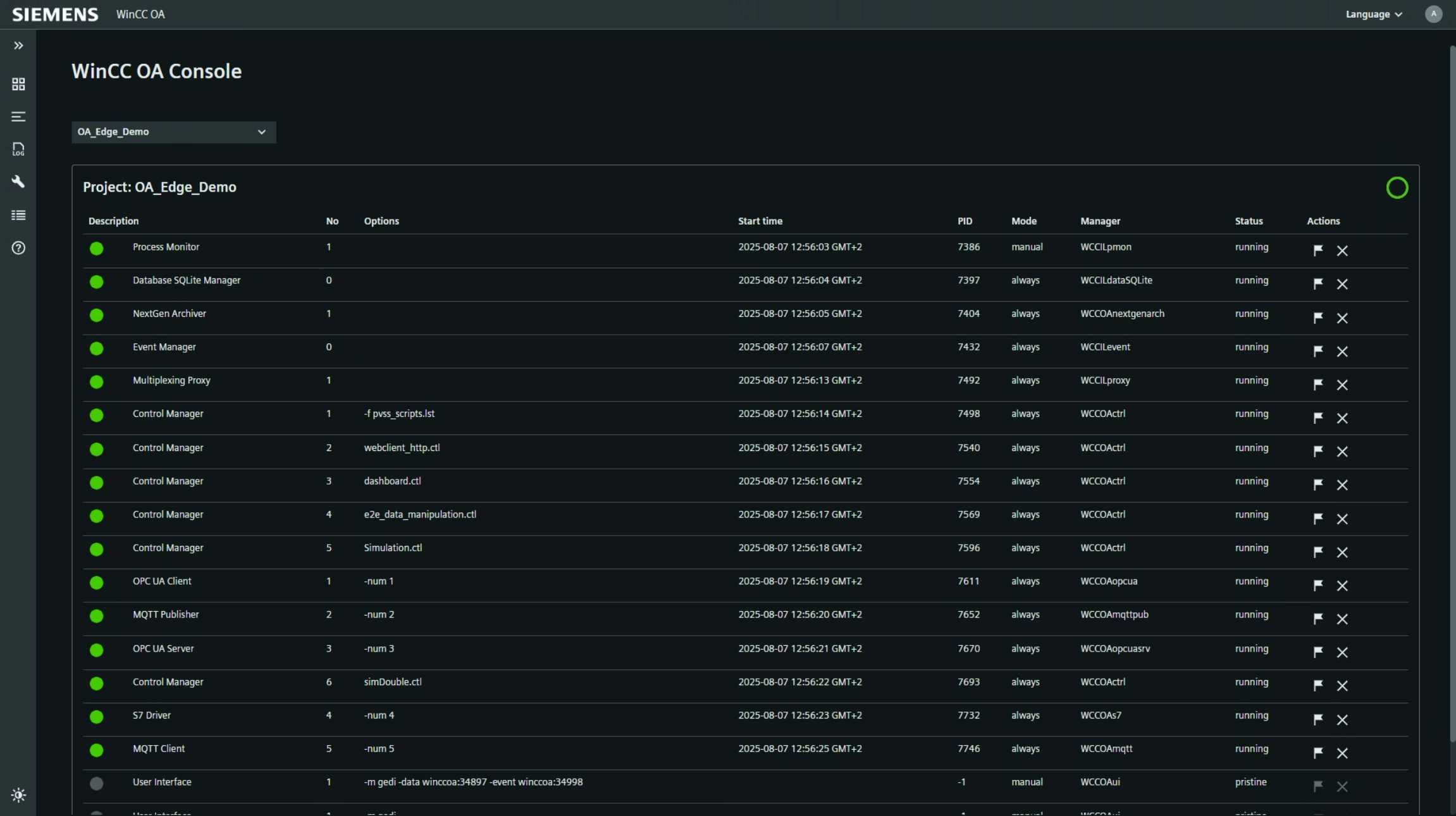
The Console section provides an overview of all running processes and managers for the selected project. The table includes:
- Description – Name or description of the process or manager.
- No – Instance number.
- Options – Additional options or parameters for the process.
- Start time – The time the process was started.
- PID – Process ID.
- Mode – Startup mode (manual or always).
- Manager – Manager name.
- Status – Current status (e.g., running, pristine).
- Actions – Actions available for each process (e.g., flag, terminate).
Debug Flags
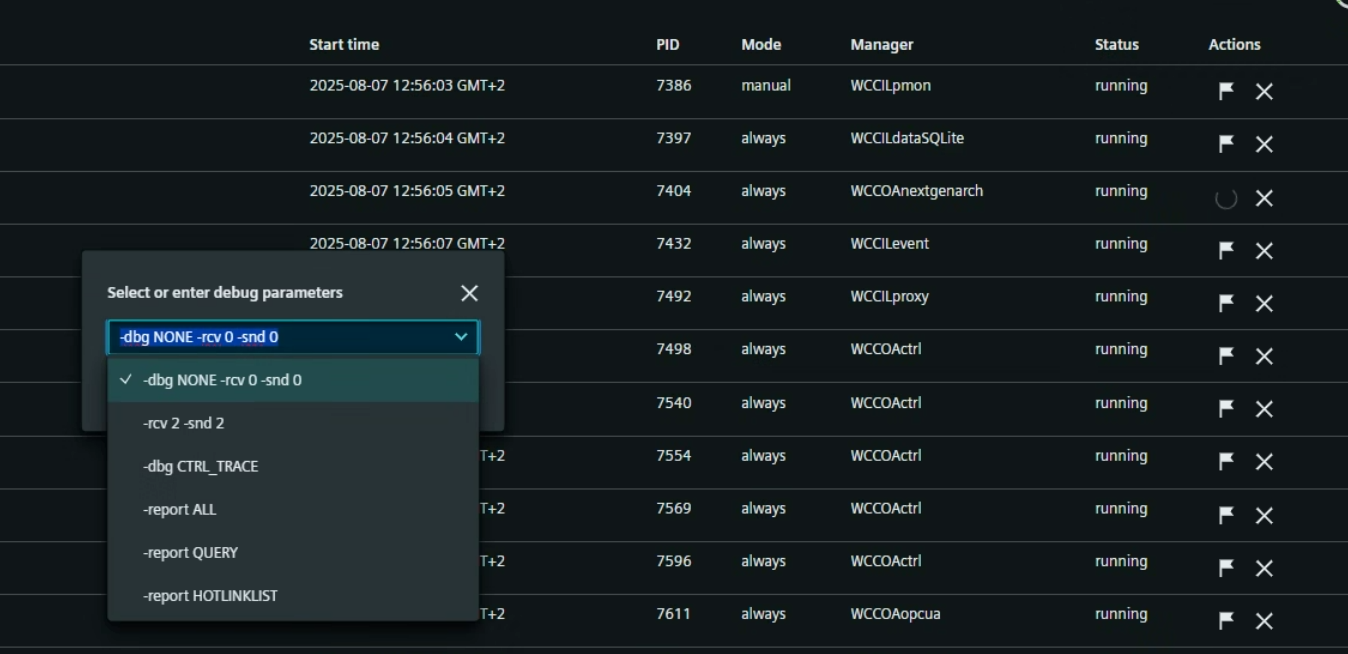
The Debug Flags section allows you to set debug flags for specific managers in your WinCC OA system. Use this section to enable or disable debugging output for troubleshooting.
Logs
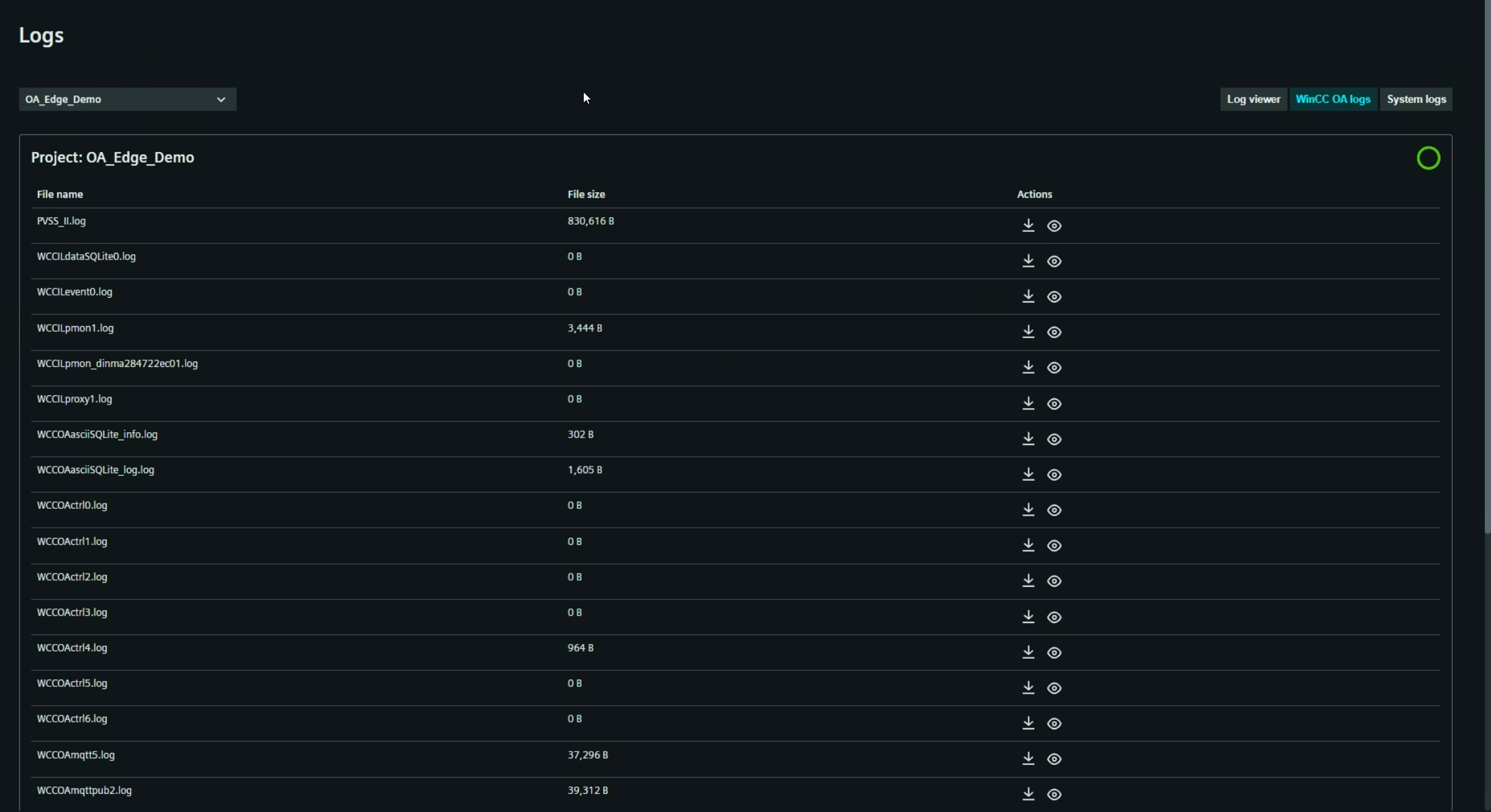
The Logs section provides access to log files for the selected project. You can view, download, and analyze log files. The section includes:
- File name – Name of the log file.
- File size – Size of the log file.
- Actions – Download or view the log file.
Tabs at the top right let you switch between Log viewer, WinCC OA logs, and System logs.
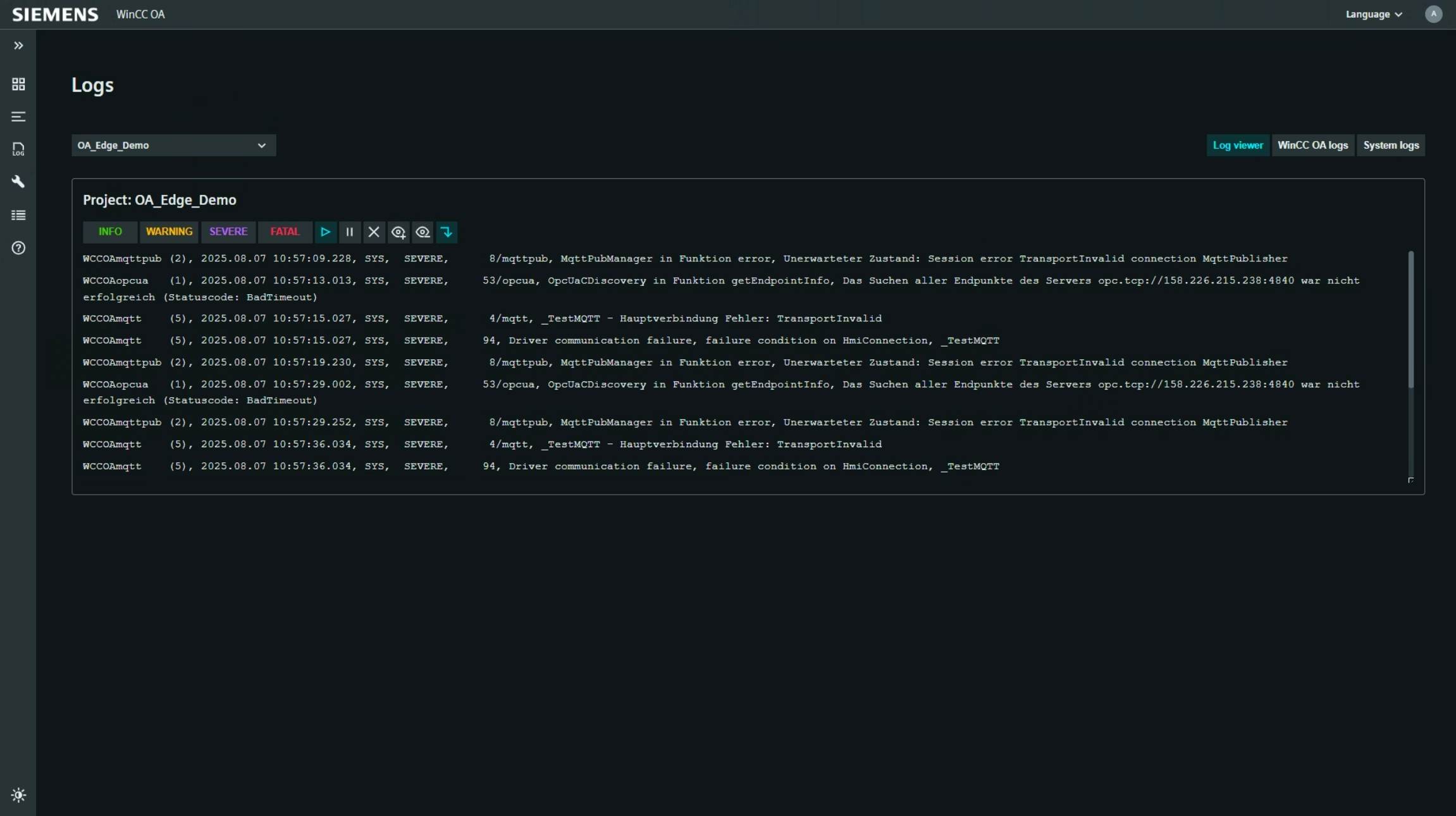
When you open a log file on the server, a dedicated viewer window opens in the browser, allowing you to read the log file directly within the Administration Interface.
Configuration
The Configuration section gives you direct access to the configuration files of your WinCC OA project(s). Use this section to view the current configuration of your WinCC OA project.
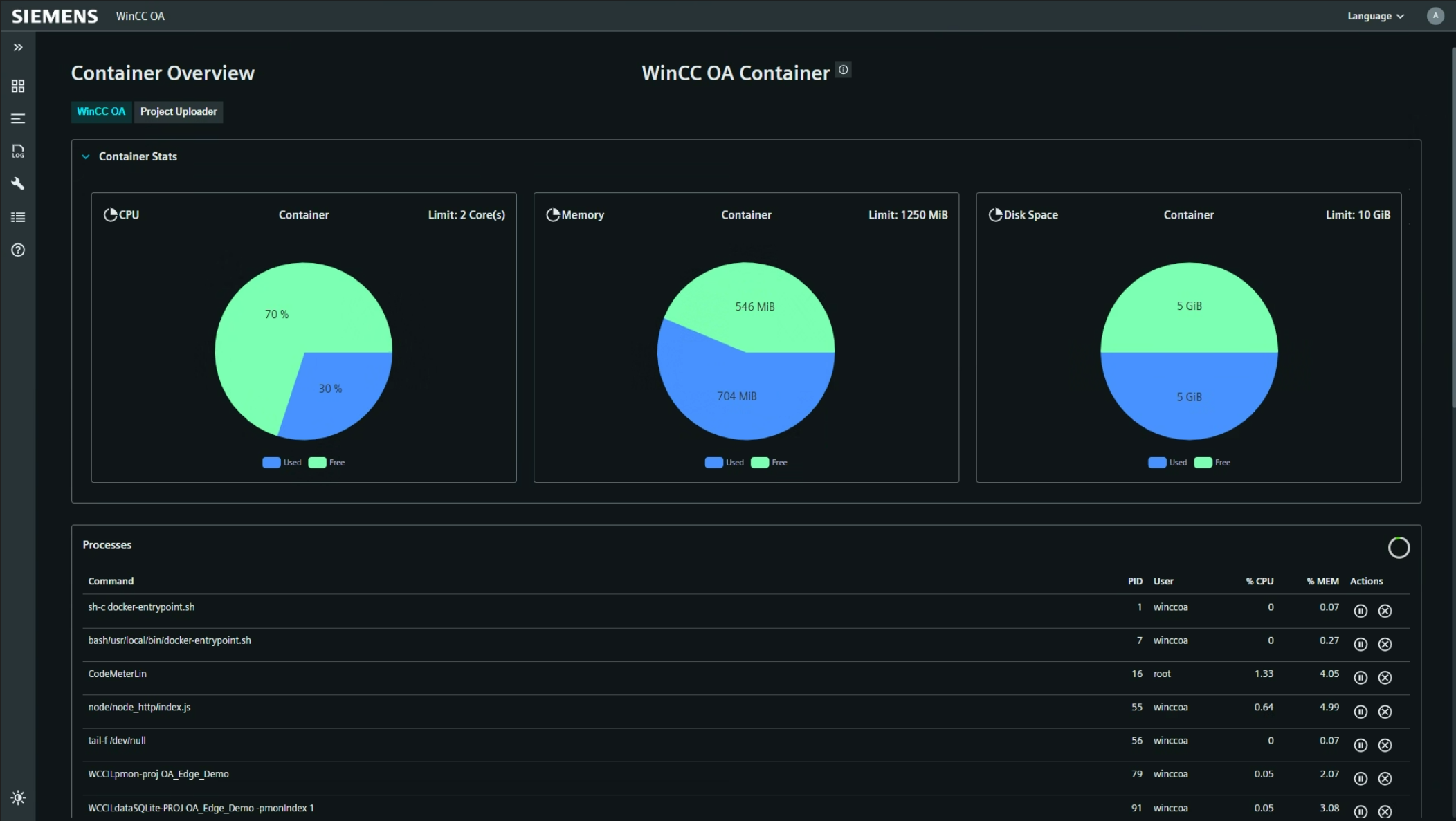
Container Overview
The Container Overview section displays performance indicators and running processes within the WinCC OA container on the Edge device. The section includes:
- CPU – Container CPU usage and limit.
- Memory – Container memory usage and limit.
- Disk Space – Container disk space usage and limit.
- Processes – List of running processes, including command, PID, user, CPU and memory usage, and actions (view, terminate).