
OS Auth. Groups
In this panel, you can add new groups.
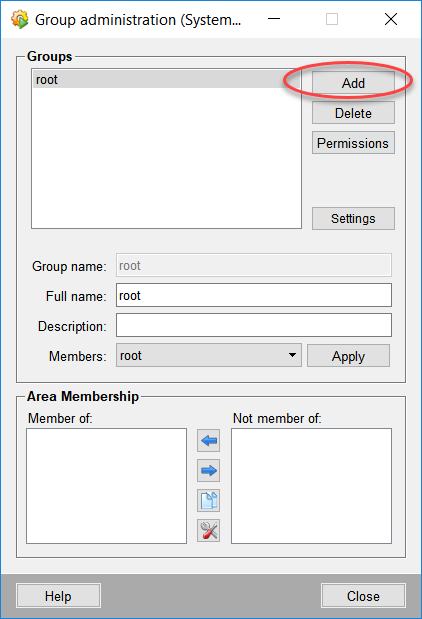
Open the group selection panel via the group management panel and click Add. In this panel, you can add both local groups and OS-Auth groups:
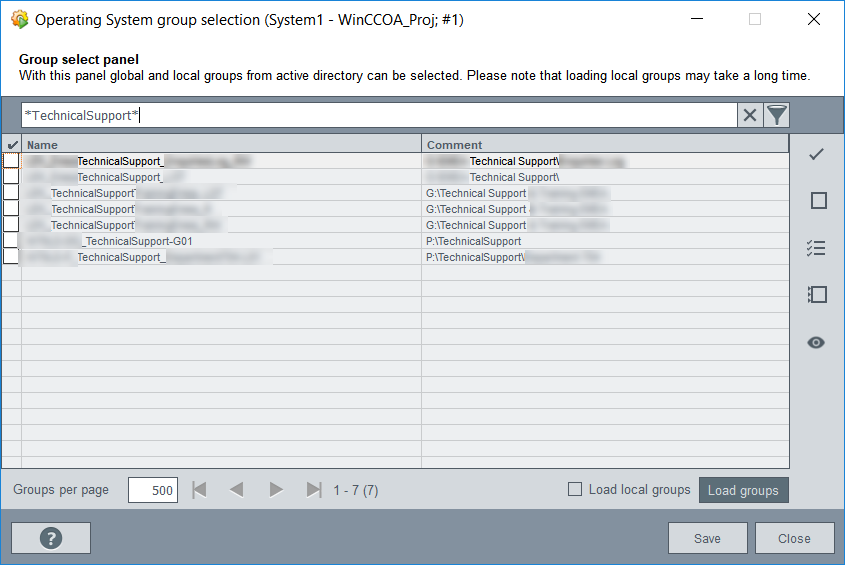
- In the panel, both local and OS Auth groups can be loaded.
Important:Under Rhel10 and Debian 13, only local groups are loaded. OS Auth groups must be added manually.
- At the top of the panel, you can filter by group names. You can use e.g. *:

-
 Enter a search text to the search field and use
this button to search for the text.
Enter a search text to the search field and use
this button to search for the text. -
 Delete the filter text.
 - On the right you can configure the view of the groups by using different buttons:
-
 Select all selected groups. Note that
you can select multiple groups by holding the SHIFT key and selecting the groups.
Select all selected groups. Note that
you can select multiple groups by holding the SHIFT key and selecting the groups. -
 Deselect all selected groups
 -
 Select the search result
 -
 Delete the group selection.
 -
 Show all selected groups
At the bottom of the panel you can enter how many groups should be shown on a page. Using the arrow keys, you can move to the next or previous page, or to the end or start of the group list.


- Load local groups : loads the groups of the local computer. The selected groups can be saved in WinCC OA by using the "Save" button.
CAUTION:
Groups that were already saved in WinCC OA cannot
be deleted by using the Operating System Group Selection panel.
Note:
Users of the group ROOT can open the User administration panel.