
SECS Gateway Configuration
This chapter describes how to configure the SECS Gateway.
Click the SECS Gateway button in the system management's driver panel to open the configuration panel.
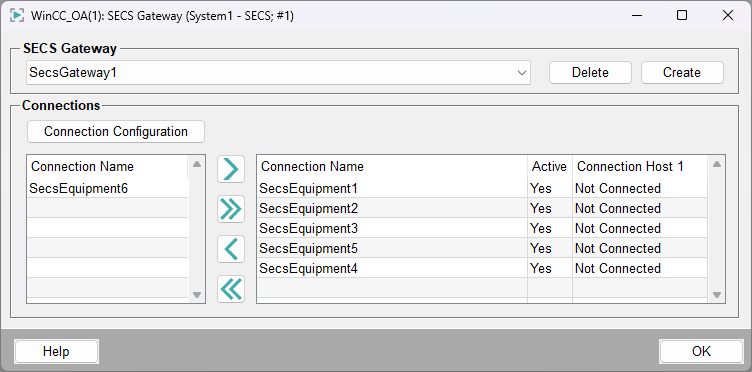
SECS Gateway
You can select one of the existing SECS Gateways via this combo box. The Create button lets you create a new gateway. The Delete button removes the currently selected gateway. This is only possible when no equipment is assigned to it.
Connections
The table on the left side contains all available connections. The table on the right side shows which connections are assigned to the selected gateway as well as their active and connection state.
Connection configuration
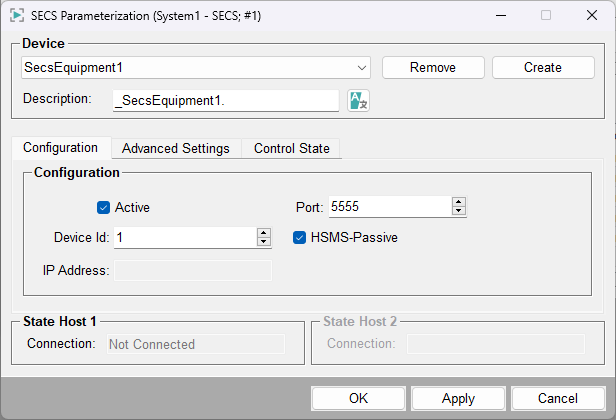
This button opens the following panel to create and configure equipment connections. Changes in this panel (no matter which tab) only take effect when either the Apply or OK button are pressed.
Device
You can select one of the existing device connections via this combo box. The Create button lets you create a new connection. The Remove button removes the currently selected connection. Via the Description you can set a description for the selected connection.
Tabs
| Tab | Description |
|---|---|
| Configuration | Configuration of the device ID, if the connection is HSMS active or passive, port, etc. |
| Advanced Settings | Connection specific timeout configuration |
| Control State | Operation and configuration of the equipment control state |
State
Displays the connection state of host 1 / host 2. Following states are possible:
Connection:
- 0 — Undefined
- 1 — Not Connected
- 2 — Connecting
- 3 — Not Active
- 4 — Disconnecting
- 5 — Failure
- 256 — Connected
Configuration
This tab allows to define general connection settings like the device ID, IP-Address and Port.
- Active
- Checkbox which enables/disables the connection.
- Device ID
- Defines the device ID which the host is connecting to.
- IP Address
- Defines the IP-Address which the TCP-Client is connecting to. Is only available if HSMS-Passive checkbox is not checked. Changing the IP and applying the changes will stop and restart the connection instance.
- Port
- Defines the port on which the equipment connection is connecting to when in HSMS-active (TCP-Client). Changing the port and applying the changes will stop and restart the connection instance.
- HSMS-Passive
- Checkbox which configures if the equipment is HSMS-active (TCP-Client) or HSMS-passive (TCP-Server).
Advanced Settings
This tab configures the equipment connection-specific timeouts, which are provided in seconds.
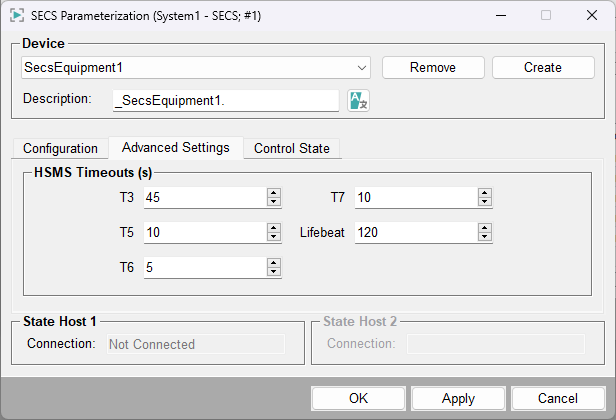
For further details on the T3, T5, T6 and T7 Timeout refer to the SEMI E37-00-0222 standard.
- T3 (SEMI E37 T3 Data Reply Timeout)
- Specifies maximum amount of time the equipment waits for an expected reply message.
- T5 (SEMI E37 T5 Connection Separation Timeout)
- Holds the timeout in seconds until the reconnection is attempted.
- T6 (SEMI E37 T6 Control Reply Timeout)
- Maximum time waiting for Select.res, Linktest.res, etc.
- T7 (SEMI E37 T7 Connection Idle Timeout)
- Time remaining in "NOT SELECTED" connection-state until a communications failure is detected.
- Lifebeat
- Holds the timeout in seconds until the next TCP/IP connection check is sent to the host.
Control State
This tab allows to configure and operate the control state of the equipment.
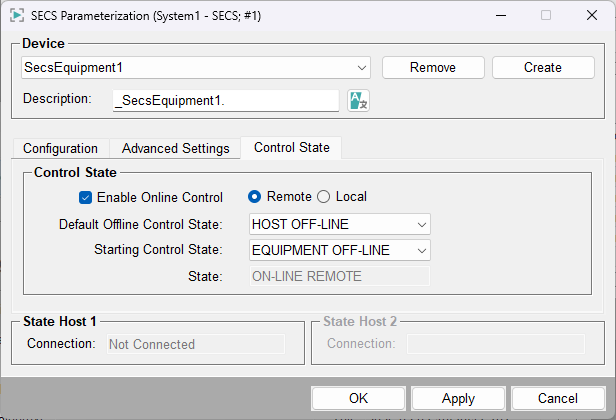
To be able to operate this panel, the following CNS nodes of the equipment instance must be configured in the plantmodel editor, or an error message will be shown (A detailed description of the CNS nodes can be found in the section CNS Structure):
<SystemName>.<SecsGwView>:<SecsEquip>.PLCControlState<SystemName>.<SecsGwView>:<SecsEquip>.PLCControlState.Config.OAOperateControlStateAllowed<SystemName>.<SecsGwView>:<SecsEquip>.PLCControlState.Config.StartingControlState<SystemName>.<SecsGwView>:<SecsEquip>.PLCControlState.Config.DefaultOfflineControlState<SystemName>.<SecsGwView>:<SecsEquip>.PLCControlState.Command.LocalRemote<SystemName>.<SecsGwView>:<SecsEquip>.PLCControlState.Command.EquipReqOnline<SystemName>.<SecsGwView>:<SecsEquip>.PLCControlState.Command.EquipReqOffline
- Enable online control
-
Checkbox which configures if the host online control is enabled. When it is checked the linked DP for the CNS node
<SystemName>.<SecsGwView>:<SecsEquip>.PLCControlState.Command.EquipReqOnlinegets set to true which triggers a Control State change in the used PLC. When the checkbox is unchecked, the CNS node<SystemName>.<SecsGwView>:<SecsEquip>.PLCControlState.Command.EquipReqOfflinegets set to true which triggers a Control State change in the used PLC.Changes only take effect if the Apply button is clicked.
- Remote/Local
- This radio box configures the online control mode to either
remote or local. The radio box is only
enabled when Enable Online Control is checked. With
remote the host can send any messages and controls to the
equipment. In the local mode, the host capabilities are restricted
(refer to SEMI E30 section 6.5.10.2). The remote selection sets the
CNS node
<SystemName>.<SecsGwView>:<SecsEquip>.PLCControlState.Command.LocalRemoteto true(/1) and the selection local sets it to false(/0) which triggers a Control State change in the used PLC. - State
-
Shows the control state with the SEMI E30 defined names. Listens to the CNS node
<SystemName>.<SecsGwView>:<SecsEquip>.PLCControlState. If the used PLC does not have a control state implementation, the CTRL++-classSecsControlStateModel.ctlmust be used to mock the Control State.States:
- 0 — Undefined
- 1 — HOST OFF-LINE
- 2 — EQUIPMENT OFF-LINE
- 3 — ATTEMPT ON-LINE
- 4 — ON-LINE REMOTE
- 5 — ON-LINE LOCAL
- Default offline Control State
- This combo box configures the default offline Control State. This state is reached when
going online fails. It is either HOST OFF-LINE or EQUIPMENT OFF-LINE. It represents the
DPE value of the CNS node
<SystemName>.<SecsGwView>:<SecsEquip>.PLCControlState.Config.DefaultOfflineControlState. - Starting Control State
- This combo box configures the starting Control State. It represents the DPE value of the
CNS node
<SystemName>.<SecsGwView>:<SecsEquip>.PLCControlState.Config.StartingControlState.