Read value from datapoint
The "read value from datapoint" in the ScriptWizard enables reading one current value or more values from a datapoint and storing it / them in the given target variable.
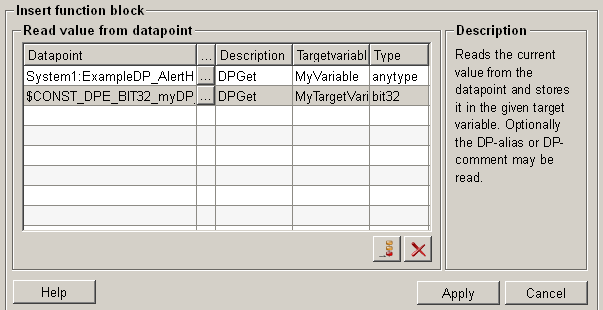
Figure: Overview - Read value from datapoint
Structure
The following paragraphs list all fields and options of the function "read value on datapoint" and explain how to use them.
Datapoint
In the datapoint text field all the added datapoints and $-parameters are listed.
Select datapoint 
Click on the push button in order to edit a selected DPE or $-parameter (see also Add
datapoint element).
Description
Select a description text for the selected datapoint element in the description column. There are 4 options:
-
DPGet => To give the name of the datapoint element
-
DPGetDescription => To give the description of the datapoint element
-
DPGetAlias => To give the alias value of the datapoint element
-
DPGetUnit => To give the unit of the datapoint element
Target variable
Specifies in which variable the value shall be stored. The target variable is created automatically and is named by default according to the specified datapoint name and config. You can change the name by clicking on it. Moreover, all defined target variables are listed in the selection list. Therefore you can also select an existing variable with the combo box.
Type
The type of a datapoint element is recognized automatically (if possible) and an appropriate selection is met. The type can also be defined manually should the type have been recognized wrongly.
A type conversion does not take place! The type capable of accepting the value of the datapoint must be selected. An incompatible selection results in error in the panel!
Add datapoint 
Opens the dialog to add a new datapoint element (see also Add datapoint element).
Delete datapoint 
Select a datapoint in the datapoint text field, click on the push button "delete
datapoint" and
the selected datapoint is deleted.
Help
For more information about the function "read value on datapoint" please refer to the WinCC OA 3.11 online help by clicking on the push button "Help".
Apply
Click on the push button "Apply" and reading value on a datapoint is completed. The entered values are then applied to the current function.
Cancel
Click on the push button "Cancel" and this function is rejected. A new function can be then selected.
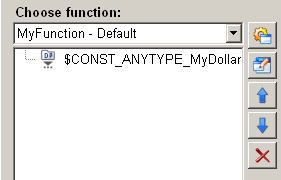
Figure: A new function to read value from datapoint added successfully