Advanced Configuration
The Following configuration settings are optional and should not be addressed for a basic setup of the Dashboard. They allow extended customization for advanced users or to address specifics of the plant's network configuration.
Certificates
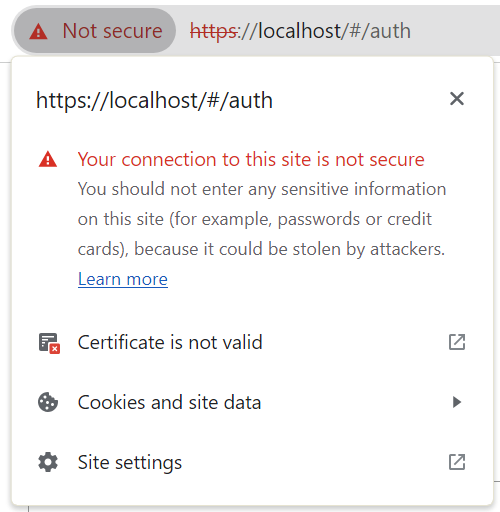
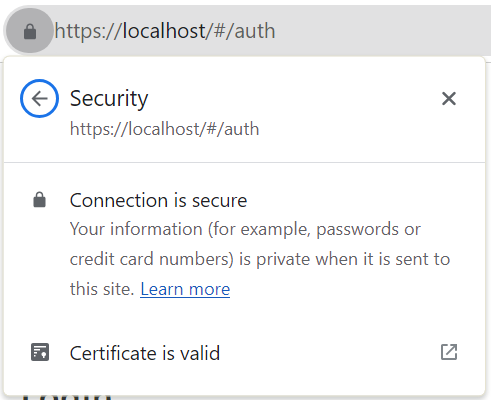
After setting up the Dashboard back end, make sure to install the root certificate of the HTTP Server within your browser or the certificate store of the client operating system to ensure that a secure connection can be established.
If the certificates are not properly installed on the client, a connection to the Dashboard is still possible, but some features might not work due to the necessity of a secure connection, e.g. Shared Worker.
In Firefox and Edge, the exception for self-signed certificates must be accepted
twice. Once for the connection to the HTTP server (URL: https://<Server
Host Name>:<HTTPS Port>) and once for the connection to the Web
Socket server (URL: https://<Server Host Name>:<WebSocket
Port>).
Dashboard User Permissions
Depending on the use case, the user must be assigned specific permissions. The following permissions are required for a Dashboard user to view, edit or publish Dashboards.
- Users that do not have either permission bit can only view Dashboards without being able to edit or publish.
- Users with the permission bit 3 can edit Dashboards. This permission bit can be changed with the config entry [wssServer] canEditPermissionBit.
- Users with the permission bit 4 can publish Dashboards. The permission bit can be changed with the config entry [wssServer] canPublishPermissionBit.
- The permission bit 4 is also used for writing to datapoints with dpSet() from the Dashboard, which can also be set via ../../config_entries/sections/wssServer.html#wssServer__canWritePermissionBit.
Every Dashboard user must have a password set.
root is not allowed to login within
the Dashboard.Web Server Port
The web server uses the ports 443 (Windows) or 8443 (Linux) by default. They can be changed using the config entry [webClient] httpsPort.
WebSocket Port
In addition to the HTTP server port that is used to connect to the Dashboard, an
additional port is used for the WebSocket connection. By default, the port
8448 is used, which can be adjusted by using the config entry
[wssServer] httpsPort
Web Server Redirect
To set up a redirect to the Dashboard instance within your web server, update the config file by inserting or changing the config entry [httpServer] indexPage to:
[httpServer]
indexPage = "data/dashboard/index.html"
You can now call up the dashboard directly via the following URL:
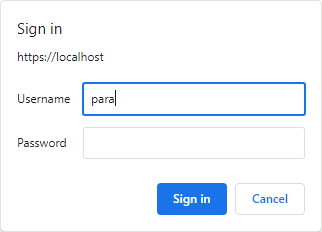
https://localhostThis URL does not have an exception for HTTP server authentication, such as is the case with the Dashboard URL, and therefore it is necessary to authenticate with the user for the HTTP server before logging in. To deactivate this additional authentication, seeHTTP Server Authentication. For a Linux server, the HTTPS port must be added manually to the URL, as an automatic redirect to port 8443 is not available.
https://<Your Server Host Name> to https://<Your
Server Hostname>/download, as the automatic redirect of the HTTP Server
is now used for the Dashboard feature.HTTP Server Authentication
By default, the WinCC OA HTTP server requires an authentication before a connection can be established. This behavior can be disabled by setting the config entry [webClient] clientSideAuth to the value 1.
[webClient]
clientSideAuth = 1
Authentication Token
As alternative to login with actual user credentials, a login can also be performed by using a temporary authentication token. How to create an authentication token for a user is described in Login via Authentication Token.
- The validity period of an authentication token can be configured by setting the config entry [wssServer] tokenExpire. By default, a token is valid for 10 minutes.
-
For additional security, the token can be configured to be revoked by the server after a specific amount of time, even if the connection is still established. This behavior is disabled by default but can be enabled by setting the time limit with the config entry [wssServer] tokenExpireWarning, after which the connection will be forcefully closed. The user receives a warning within the Dashboard before the time limit expires.
Figure 2. Session Expire Warning 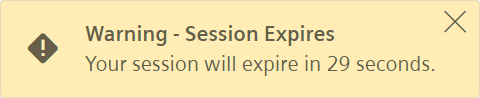
Connection Heartbeat
The Dashboard uses a connection heartbeat to detect a continuous connection between server and client.
This heartbeat can also be used to ensure a more stable connection in slower or unstable network environments by increasing the interval between heartbeats.
The interval length can be configured by setting the config entry [wssServer] heartbeatSeconds.
Shared Worker
Data updates in the Dashboard are sent through a WebSocket connection to the WinCC OA backend. In the default setting, each browser tab and each window will connect to the WinCC OA backend individually and therefore each requires an individual dashboard license as long as the connection remains established.
When the config entry [wssServer]useSharedWorker is set to "1", all connected browser tabs will retrieve updates through a single WebSocket connection. This will reduce the required dashboard licenses to one license per browser. However, in this case it will no longer be possible to log into the same browser context with different users at the same time.
The use of a Shared Worker requires an HTTP certificate that is unexceptionally trusted by the web browser.
Project without web server
If your project does not yet contain a web server, one must be added to your project manually. To do this, add a second CTRL manager with the following parameter:
webclient_http.ctlThrottling
In Chromium-based browsers intensive throttling can occur e.g. on tabs that have not been visited in some time, which will prevent smooth updates to widgets. This can be prevented by starting the browser with following parameter:
--disable-background-timer-throttling.Load Balancing
The dashboard can be used with load-balancing on multiple Web Socket servers. It is essential that either the certificates are installed and accepted on the client machine or unexceptionally valid certificates are used.
The following steps are necessary to configure load balancing:
- add two Dashboard scripts
- add webserver
- run the Dashboard
- check which websockets are started
As standard the dashboard connects to the websocket servers in the sequence they are provided in.
Customizations via WinCC OA
Custom Icons to enhance visuals for Dashboards and Widgets can be added via the data/WebUI/icons folder. They are then accessible within the Dashboard icon selection.
Custom Widgets are added via the data/WebUI/widgets folder.
High Availability
The Dashboard can also be used in a redundant system with multiple back ends to increase availability. To accomplish a seamless transition, a service worker is used. It ensures that the http connection is shifted alongside the WebSocket connection. This necessitates an additional entry for the service-worker in the config file:
[httpServer]
httpHeader = "Service-Worker-Allowed: /"
The use of High Availability requires an HTTP certificate that is unexceptionally trusted by the web browser. In addition all hosts must be reachable from the client. More detailed information on this can be found in chapters Redundancy and Redundant network connections.