Panel functions

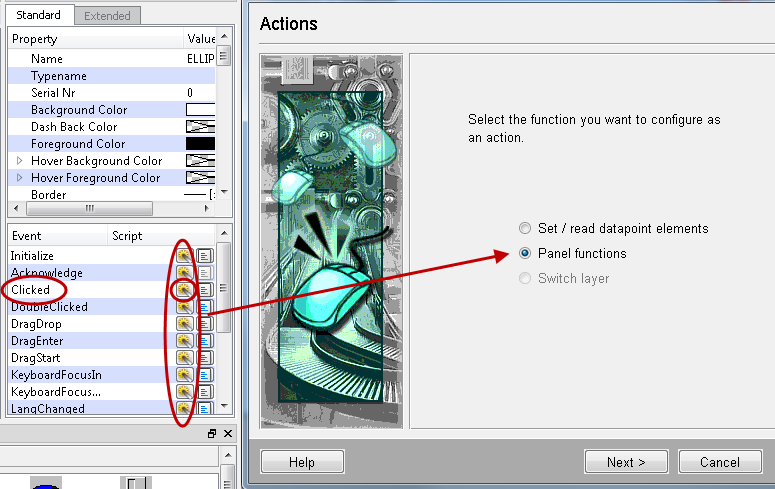
Open the "Simple Configuration" for the event "Clicked" via the Property Editor of GEDI (see figure below). Select the option "Panel functions" after opening the "Simple configuration":

Figure: "Panel functions" Option

select panel func

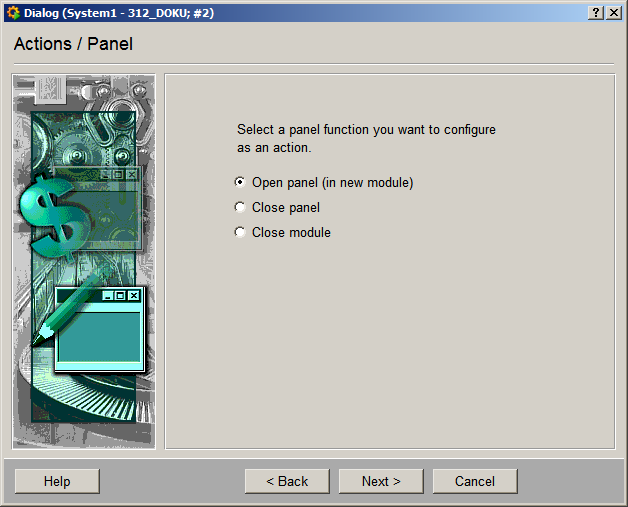
The panel functions are Open panel, Close panel and Close module.

Figure: Panel functions window

EINFACHE PARAMETRIERUNG1 28

Open panel (optional in a new module)

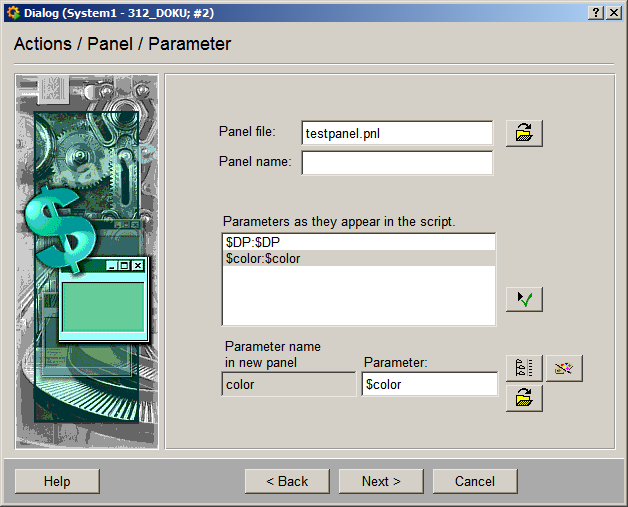
In this panel you pass the parameters to your panel. If a panel contains dollar parameters, each $parameter must be replaced with a defined value. For more information on dollar parameters see chapter Properties of references and over-configuration.

Figure: Open panel window with dollar parameters

EINFACHE PARAMETRIERUNG1 29

exampleExample

  1. Select the Open panel(in new module) radio box (see figure Panel functions window above).

  2. Click on Next >.

  3. Use the File selector to select a panel file.

  4. Enter a title, e.g. TEST, into the text field "Panel name". The panel is opened with this name.

  5. All $ parameters in the panel are displayed in the list.

  6. Select a $ parameter from the list.

  7. Enter a value in the field Parameter (a string, a number, a DPE name or a $ parameter) for the parameter.

  8. Use the button with the green symbol next to the text field to add the value to the list.

You can assign , for example, colors, datapoints or panels to $parameters. The buttons open different selectors: (See also Create a reference with a $ parameter and module GEDI references.)

EINFACHE PARAMETRIERUNG1 30 the panel selector

EINFACHE PARAMETRIERUNG1 31 the DP selector

EINFACHE PARAMETRIERUNG1 32 the color selector

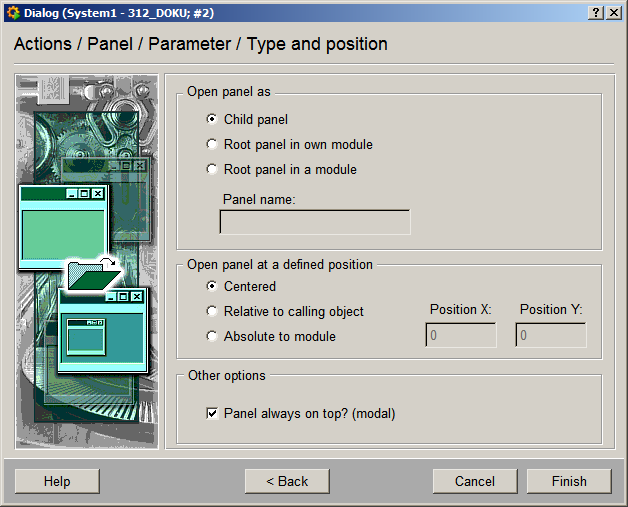
Use Next > to open the next window. Here you can specify how the panel should be opened.

Figure: Open child panel window

EINFACHE PARAMETRIERUNG1 41

  1. Specify how the panel should be opened.

  2. In the middle section specify the position of the panel.

  3. In the bottom section select whether this panel must always be shown in the foreground (modal).

  4. Click on the Finish button.

Open the panel and click on the configured object. The panel with the parameters will open at the specified position.

Close panel

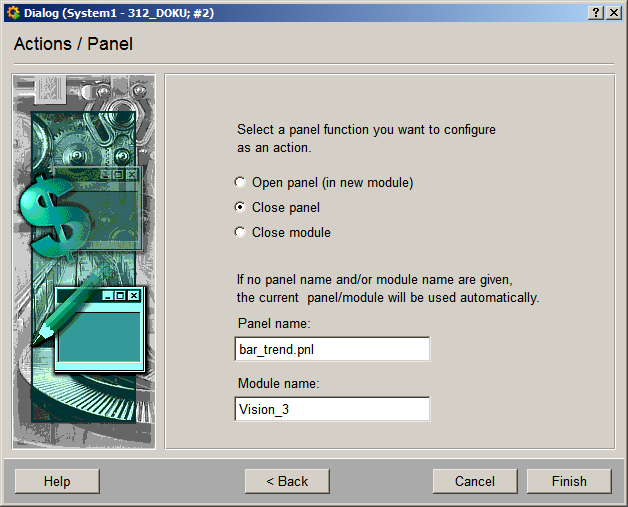
This option closes an open panel when an event occurs. This can be realized in the following way:

  • if no panel or module names are specified, the own panel is closed.

  • If only the panel name is specified, this panel is closed in its own module.

  • If the panel to be closed is in another module, both the module and panel name must be specified.

Figures: Close panel window

EINFACHE PARAMETRIERUNG1 34

exampleExample

  1. Select the Close panel option.

  2. Specify a panel and/or module names, for example, bar_trend.pnl, Vision_3 (see figure).

  3. Click on the Finish button.

Open your panel and click on the configured object. The specified panel will be closed.

Close module

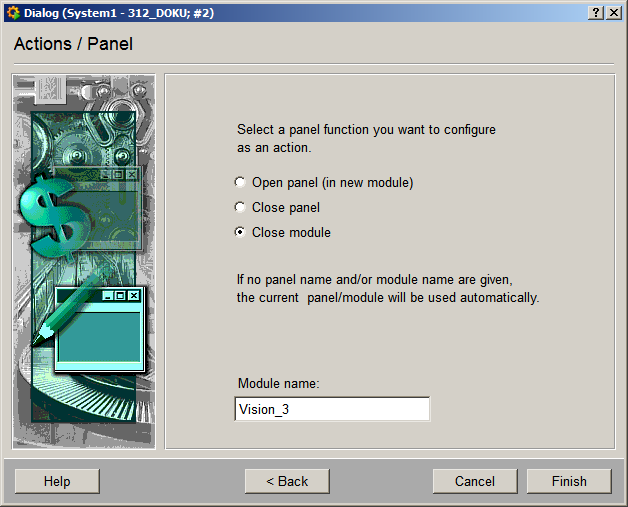
This option closes an open module. If no module name has been specified, the command will be applied to the own module.

Figure: Close module window

EINFACHE PARAMETRIERUNG1 42

exampleExample

  1. Select Close module option.

  2. Enter a module name if you want to close a specific module.