
animateWait()
With the function animateWait() you can create animations and wait for them to finish.
Synopsis
int animateWait( string|shape object, string attribute, <type>
                    startValue, <type> endValue [, mapping options]);
Parameter
| Parameter | Description | ||||||||||||||||||||||||||||||||||||||||||||||||||||||||||||||||||||||||||||||||||
|---|---|---|---|---|---|---|---|---|---|---|---|---|---|---|---|---|---|---|---|---|---|---|---|---|---|---|---|---|---|---|---|---|---|---|---|---|---|---|---|---|---|---|---|---|---|---|---|---|---|---|---|---|---|---|---|---|---|---|---|---|---|---|---|---|---|---|---|---|---|---|---|---|---|---|---|---|---|---|---|---|---|---|---|
| object |
The parameter "object" is the shape or group (PanelRef or ShapeGroup) to animate (same as in setValue/getValue) or a "shape" datatype variable pointing to a shape. Examples: animateWait("RECTANGLE1", "backCol", "{54,132,15}", "{248,28,120}"); ----------------------------------------------------------------------------------------- animateWait("", "backCol", "{54,132,15}", "{248,28,120}"); The notation "" is used for the current object. If you, for example, add a script to the "clicked" event of a circle. You can refer to the circle by using "". ----------------------------------------------------------------------------------------- RootPanelOnModule("flyIn", "flyIn", flyInModule .ModuleName, ""); The code opens the panel "flyIn" in the module "flyInModule.ModuleName animateWait( "flyInModule", "sizeAsDyn", makeDynInt(0, 0), makeDynInt(581, 341), makeMapping("duration", 600)); The module name "flyInModule" is used for the function "animate". |
||||||||||||||||||||||||||||||||||||||||||||||||||||||||||||||||||||||||||||||||||
| attribute |
The graphic attribute that is changed, for example, "backCol" or "font". The function animateWait() changes attributes of the following types:
|
||||||||||||||||||||||||||||||||||||||||||||||||||||||||||||||||||||||||||||||||||
|
startValue endValue |
Start value: for example, the start position or the color for an animation End Value: for example, the end position or the color for an animation The following data types can be used for the parameters start and end values: int, float, color, font (animates only the size), point (e.g. position), size, bool. Since the data types point and size are not available in CTRL, they are represented as dyn_int (x, y)/(width, height) - see examples below. In order to pass these data types to the function animateWait(), the following attributes are available for a shape:
In the following, examples for the parameters are shown:
You can also use intermediate values for the size. The intermediate values are of the same data type as the start and the end values: For example, animateWait("", "sizeAsDyn", this.sizeAsDyn, this.sizeAsDyn, makeMapping("keyValues", makeMapping(0.5, makeDynInt(150, 150)), "easingCurve", "OutBack", "duration", 700)); Intermediate values: from 0.0 to 1.0, correspond to percentages 0% to 100%. Specify when an animated value should accept a value. 0.0 (0%) the start value applies 1.0 (100%) the end value applies In the example above: makeMapping(0.5, makeDynInt(150, 150)) the code makeDynInt(150, 150) applies to the value 0.5 (50%) . In other words the "key" (the percentage) must be specified as a float value. |
||||||||||||||||||||||||||||||||||||||||||||||||||||||||||||||||||||||||||||||||||
| options |
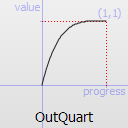
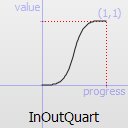
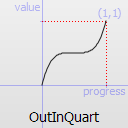
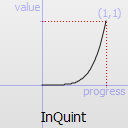
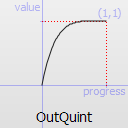
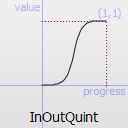
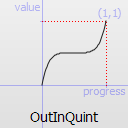
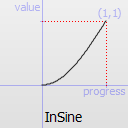
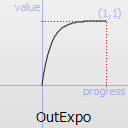
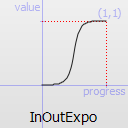
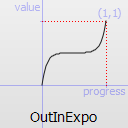
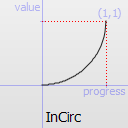
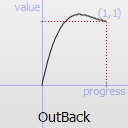
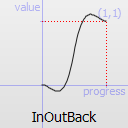
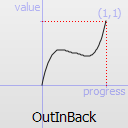
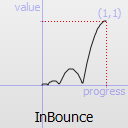
The optional "options" mapping can contain the following key(string)/value(attribute type) pairs: "duration"/int ... duration of animation in ms, default=600ms "loopCount"/int ... number of times the animation is run. default=1. (0=don't run; -1=runendlessly) "direction"/string ... "Forward" or "Backward" movement, default "Forward". "Backward" reverses and runs from endValue to startValue "easingCurve"/string ... how the values are changed over time. default="Linear"; The following table contains the possible values for the "easingCurve":
For more information see the QT documentation : Qt Documentation - enum QEasingCurve::Type Examples: animateWait("", "rotation", 0.0, 180.0, makeMapping("duration", 2000)); animateWait("", "rotation", 0.0, 180.0, makeMapping("loopCount", 3)); animateWait("", "rotation", 0.0, 180.0, makeMapping("direction", "Forward")); animateWait("RECTANGLE1", "position", makeDynInt(450, 500), makeDynInt(200, 160), makeMapping("duration", 720, "easingCurve", "OutBack")); |

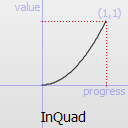
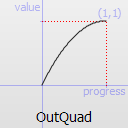
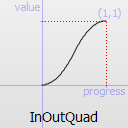
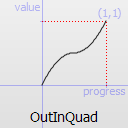

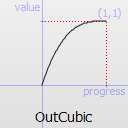
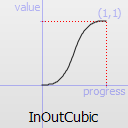
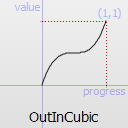
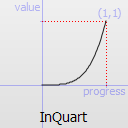
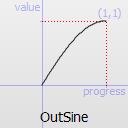
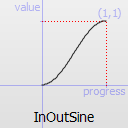
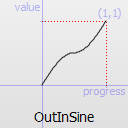
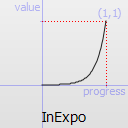
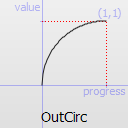
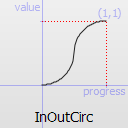
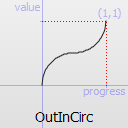
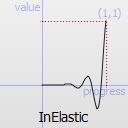
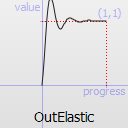
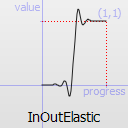
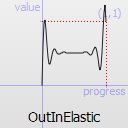
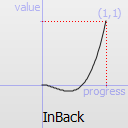
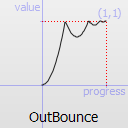
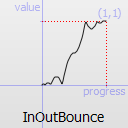
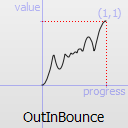
Description
With the function animateWait() you can create animations. Different from the animate() this function waits for the animation to finish before returning. To create more complex animations, single animations can be grouped to run either parallel or sequentially. To create a group, call the function createAnimation().
Note that animations need a lot of CPU. When animations run for a longer period of time, this might be noticeable! If an animation is started via a shape script of a panel, the following applies:
If the panel is deleted, also the animation is deleted.
If the panel remains in cache, also the animation remains in cache.
Add, for example, a rectangle or a circle to a panel and add the following script to the "clicked" event of the object. This is the easiest way to animate an object:
main()
{
  animateWait("", "backCol", "{54,132,15}", "{248,28,120}");

/* changes the background color of the object the script was added to */
}
This creates an animation that changes the background color of the object and starts the animation (with the default duration of 600 msecs) and executes the animation once (not a continuous animation).
In the following example the corners of a rectangle are rounded off and the rectangle is rotated. Add the code to the "clicked" event of a rectangle.
main()
{
  animateWait("", "cornerRadius", 0, 35);
  animateWait("", "rotation", 0.0, 180.0, makeMapping("duration", 2000));
}
Assignment
Graphic functions
Availability
UI