
animate()
With the function animate() you can create animations.
Synopsis
int animate([int parent], string|shape object, string attribute, <type>
                    startValue, <type> endValue [, mapping options]);
Parameter
| Parameter | Description | ||||||||||||||||||||||||||||||||||||||||||||||||||||||||||||||||||||||||||||||||||
|---|---|---|---|---|---|---|---|---|---|---|---|---|---|---|---|---|---|---|---|---|---|---|---|---|---|---|---|---|---|---|---|---|---|---|---|---|---|---|---|---|---|---|---|---|---|---|---|---|---|---|---|---|---|---|---|---|---|---|---|---|---|---|---|---|---|---|---|---|---|---|---|---|---|---|---|---|---|---|---|---|---|---|---|
| parent |
The parameter "parent" is an integer value to be used to create an animation group: Example: int g; g = createAnimation("sequential"); createAnimation(g, "pause"); |
||||||||||||||||||||||||||||||||||||||||||||||||||||||||||||||||||||||||||||||||||
| object |
The parameter "object" is the shape or group (PanelRef or ShapeGroup) to animate (same as in setValue/getValue) or a "shape" datatype variable pointing to a shape. Examples: animate("RECTANGLE1", "backCol", "{54,132,15}", "{248,28,120}"); ----------------------------------------------------------------------------------------- animate("", "backCol", "{54,132,15}", "{248,28,120}"); The notation "" is used for the current object. If you, for example, add a script to the "clicked" event of a circle. You can refer to the circle by using "". ----------------------------------------------------------------------------------------- RootPanelOnModule("flyIn", "flyIn", flyInModule .ModuleName, ""); The code opens the panel "flyIn" in the module "flyInModule.ModuleName animate(g, "flyInModule", "sizeAsDyn", makeDynInt(0, 0), makeDynInt(581, 341), makeMapping("duration", 600)); The module name "flyInModule" is used for the function "animate". |
||||||||||||||||||||||||||||||||||||||||||||||||||||||||||||||||||||||||||||||||||
| attribute |
The graphic attribute that is changed, for example, "backCol" or "font". The function animate() changes attributes of the following types:
|
||||||||||||||||||||||||||||||||||||||||||||||||||||||||||||||||||||||||||||||||||
|
startValue endValue |
Start value: for example, the start position or the color for an animation End Value: for example, the end position or the color for an animation The following data types can be used for the parameters start and end values: int, float, color, font (animates only the size), point (e.g. position), size, bool. Since the data types point and size are not available in CTRL, they are represented as dyn_int (x, y)/(width, height) - see examples below. In order to pass these data types to the function animate(), the following attributes are available for a shape:
In the following, examples for the parameters are shown:
You can also use intermediate values for the size. The intermediate values are of the same data type as the start and the end values: For example, animate("", "sizeAsDyn", this.sizeAsDyn, this.sizeAsDyn, makeMapping("keyValues", makeMapping(0.5, makeDynInt(150, 150)), "easingCurve", "OutBack", "duration", 700)); Intermediate values: from 0.0 to 1.0, correspond to percentages 0% to 100%. Specify when an animated value should accept a value. 0.0 (0%) the start value applies 1.0 (100%) the end value applies In the example above: makeMapping(0.5, makeDynInt(150, 150)) the code makeDynInt(150, 150) applies to the value 0.5 (50%) . In other words the "key" (the percentage) must be specified as a float value. |
||||||||||||||||||||||||||||||||||||||||||||||||||||||||||||||||||||||||||||||||||
| options |
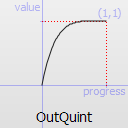
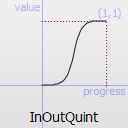
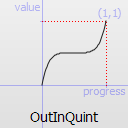
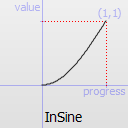
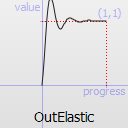
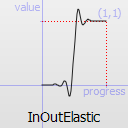
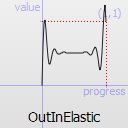
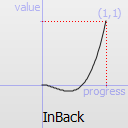
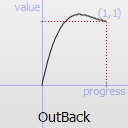
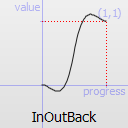
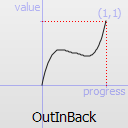
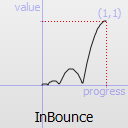
The optional "options" mapping can contain the following key(string)/value(attribute type) pairs: "duration"/int ... duration of animation in ms, default=600ms "loopCount"/int ... number of times the animation is run. default=1. (0=don't run; -1=runendlessly) "direction"/string ... "Forward" or "Backward" movement, default "Forward". "Backward" reverses and runs from endValue to startValue "easingCurve"/string ... how the values are changed over time. default="Linear"; The following table contains the possible values for the "easingCurve":
For more information see the QT documentation : Qt Documentation - enum QEasingCurve::Type Examples: animate("", "rotation", 0.0, 180.0, makeMapping("duration", 2000)); animate("", "rotation", 0.0, 180.0, makeMapping("loopCount", 3)); animate("", "rotation", 0.0, 180.0, makeMapping("direction", "Forward")); animate(g, "RECTANGLE1", "position", makeDynInt(450, 500), makeDynInt(200, 160), makeMapping("duration", 720, "easingCurve", "OutBack")); |

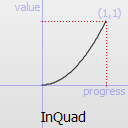
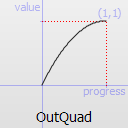
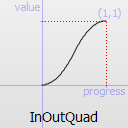
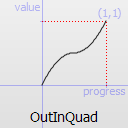

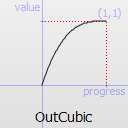
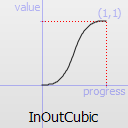
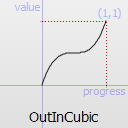
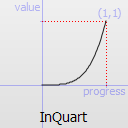
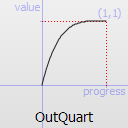
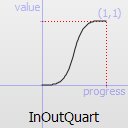
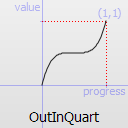
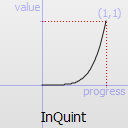
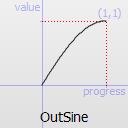
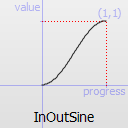
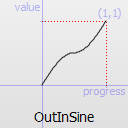
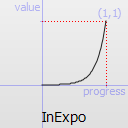
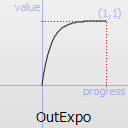
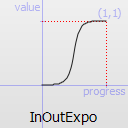
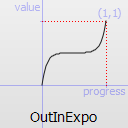
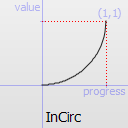
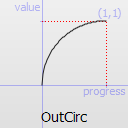
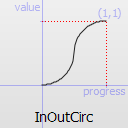
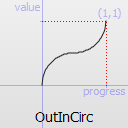
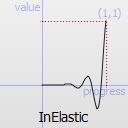
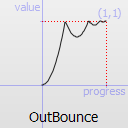
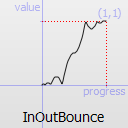
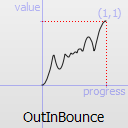
Description
With the function animate() you can create animations. To create more complex animations, single animations can be grouped to run either parallel or sequentially. To create a group, call the function createAnimation().
Animations need a lot of CPU. When animations run for a longer period of time, this might be noticeable! If an animation is started via a shape script of a panel, the following applies:
If the panel is deleted, also the animation is deleted.
To decrease the CPU load the config entry [ui] animationTimerInterval can be used to set the rendering interval.
Add, for example, a rectangle or a circle to a panel and add the following script to the "clicked" event of the object. This is the easiest way to animate an object:
main()
{
  animate("", "backCol", "{54,132,15}", "{248,28,120}");
 /* changes the background color of the object the script was added to */
}
This creates an animation that changes the background color of the object and starts the animation (with the default duration of 600 msecs) and executes the animation once (not a continuous animation).
This example creates an animation that changes the size of a text and moves it. Add it to the "clicked" event of a primitive text.
int g;
bool forward = true;
main()
{
  if ( !g )
  {
     g = createAnimation();
//create an animation group
     animate(g, "", "sizeAsDyn", this.sizeAsDyn, makeDynInt(200, 300));
     animate(g, "", "position", this.positionAsDyn, makeDynInt(300, 200));
     animate(g, "", "backCol", "{54,132,15}", "{248,28,120}");

/* create single animations that change the size, the position and the background color of an object */
  }

/* starts the animation g and moves an object forwards and backwards */
  if ( forward )
      startAnimation(g, "keep", makeMapping("direction", "Forward"));
  else
      startAnimation(g, "keep", makeMapping("direction", "Backward"));
      forward = !forward;
}
In the following example the corners of a rectangle are rounded off and the rectangle is rotated. Add the code to the "clicked" event of a rectangle.
main()
{
  animate("", "cornerRadius", 0, 35);
  animate("", "rotation", 0.0, 180.0, makeMapping("duration", 2000));
}
Assignment
Graphic functions
Availability
UI