Working with the DP selector
The following example illustrates how you can filter and select datapoints using the DP
selector using various options. The DP selector can usually be opened by pressing a
button with the icon  (see Module
PARA).
(see Module
PARA).
Below we use the +DP button on the DP group management panel to add individual datapoints to the ElectricityPowered group.
You will learn how to select your datapoints using the filtering options of the new DP selector.
Requirements and preparations:
-
In order to try out the various filtering options, we created sample datapoint types for the following examples: Motor and Valve of DPT PUMP1 and SLIDE_VALVE1.
-
For each datapoint type we created datapoints, three motor datapoints for a plant with 3 halls (A,B,C), i.e. , for example, 1A_M_motor1 (that is, motors 1-3 for plant 1, hall A), etc. i.e. a total of 9 datapoints We also create the data points 1A_V_valve1, etc. for the Valve datapoint type (also 9)
-
Assign alias names and descriptions In the _common config, for example mot1A_1 as an alias for motor1 in hall 1, plant 1. The description might be , for example Crane motor as a description for motor1 in hall A of plant 1.
 How to select an element on the Group tab
-
Click +DP.
-
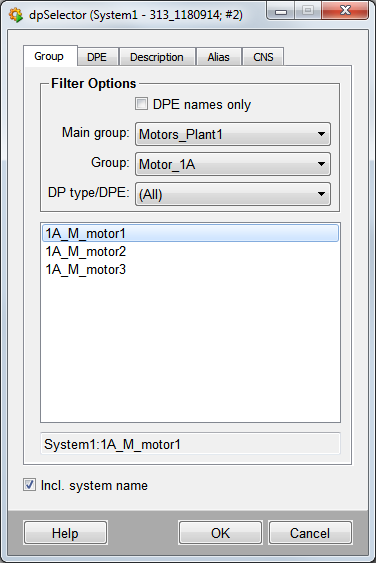
Open the Group tab.
-
Select "Motors_Plant1" from Main group.
-
Select "Motors_1A" from Group.
-
Select the datapoint 1A_M_motor1.
-
Click OK.
-
The entry is added (in this case to the table of filter definitions under DP(E) Filter) .
If the system name should be shown, for example, in a distributed system, select the check box incl. system name.
How to select an element on the DPE tab
-
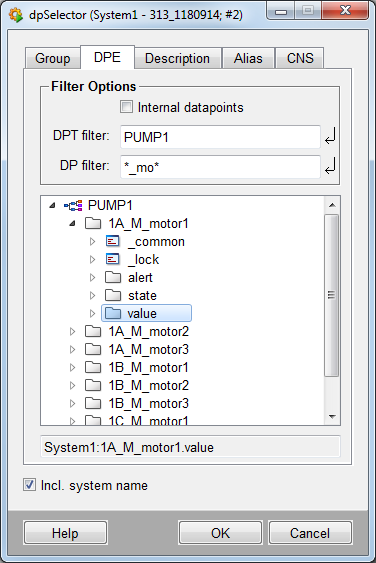
Click the DPE tab.
-
Enter "PUMP1" as the filter for the DPT.
-
Enter "*_mo*" as the filter for the datapoints
-
Displays all motors of plant 1
-
Click on 1A_M_motor1
-
Click on value and then press OK.
-
The selected datapoint element is added to the list of datapoint group filters
When you select a datapoint element of the first level, for example, an element of the datapoint type ExampleDP_Float, a period is added to the end of the datapoint name. The period is added since the element is an element and a datapoint at the same time and WinCC OA assumes that you want to select the element (an element in WinCC OA always contains a period).
Filtering by alias or description
-
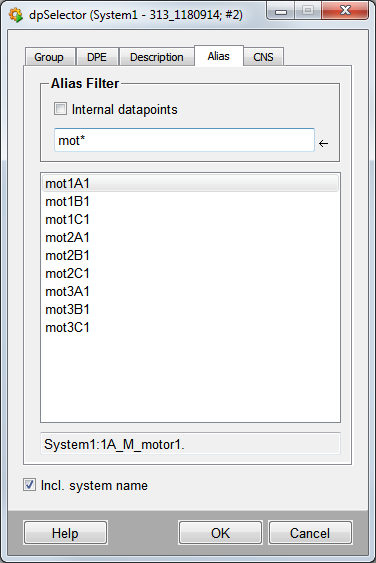
Enter a wild card in the appropriate input box, for example, mot* for alias. The display is in alphabetical order.
-
The datapoint associated with each alias is displayed in the test box below.
-
Click OK to add this datapoint to the list
How to select an element on the CNS tab
-
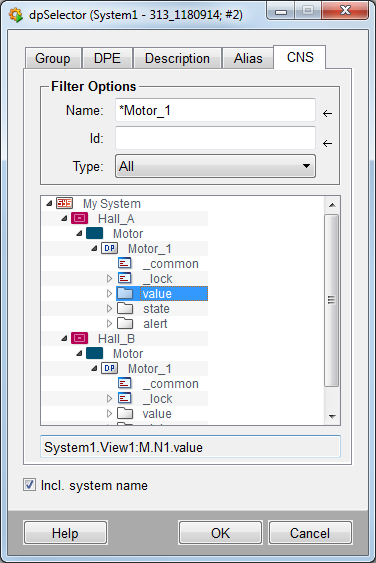
Enter a name or a ID of the CNS structure in the appropriate field, e.g. *Motor_1
-
The exisitng elements are shown with the corresponding ID path
-
Click OK to use the selected ID path