
Northbound Manager Interface Overview
This topic provides an overview of the Northbound Manager interface, describing its main sections and configuration options for both DP Group and Plantmodel data sources.
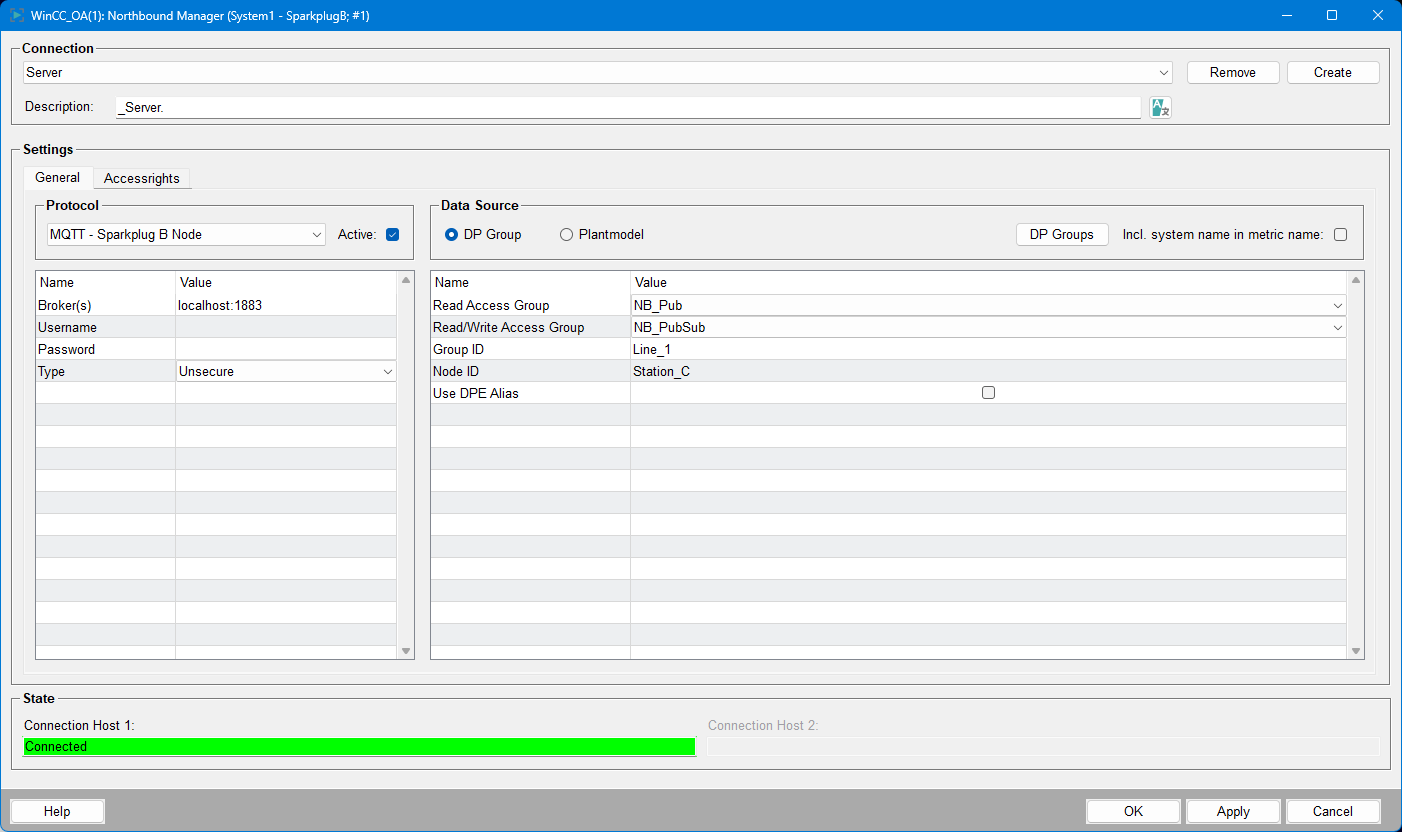
The Northbound Manager interface is divided into several main areas for configuring and managing server connections and data sources.
- Connection: At the top, you can select or create a server connection. The Description field allows you to enter a description for the server.
-
Settings: This section contains two tabs:
- General: Configure protocol and data source settings.
- Accessrights: Allows you to define the access rights to the datapoints or plantmodel nodes.
- State: Displays the connection status for each host. In the image, "Connection Host 1" is shown as Connected with a green status bar.
General Settings
The General tab is divided into two main configuration panels:
-
Protocol: Select the communication protocol and activate or deactivate it.
Currently only the protocol "MQTT - Sparkplug B Node" is available.
The following parameters can be set:
- Broker(s): The address and port of the MQTT broker
- Username and Password: Credentials for broker authentication.
- Type: Security type, see Connection-Type.
- Keep alive timeout: Keep alive timeout for the
MQTT connection in seconds. This optional value is configured via
<nbm_instance>.Config.Protocolusing themqttkeepalivekey. If omitted, the default value is 60 seconds.
- Data Source: Choose between DP Group and Plantmodel as the data source. The available parameters for each option are described below.
DP Group Parameters
When DP Group is selected, the following parameters are available:
- Read Access Group: Name of the group for read access
- Read/Write Access Group: Name of the group for read/write access
- Group ID: Identifier for the group
- Node ID: Identifier for the node
- Use DPE Alias: Option to use DPE alias
Additional options include a button to manage DP Groups and a checkbox to include the system name in the metric name.
Plantmodel Parameters
When Plantmodel is selected, the following parameters are available:
- Entry point: The entry point in the plant model hierarchy
- Group ID: Identifier for the group
- Node ID: Identifier for the node
The option to include the system name in the metric name is also available.
Connection Status
Connection status shows the current state of the currently selected connection.
Single
Shows the connection state for a single host. Status can be Connected or Standby.

Redundant
In redundant mode, only the active manager connects as Sparkplug B Node and uses NBIRTH.

The passive manager stays in standby and only uses MQTT-CONNECT.

Connection-Type
Connection types define how the Sparkplug B EoN Node connects to the MQTT broker.
You can configure the connection as either unsecure or secured with
TLS:
Unsecure Connection
Configure an unsecure connection for the Sparkplug B EoN Node.
- Set the connection type to Unsecure.
- Enter the broker address in the format <IP>:<Port>.
- Optional: Enter a username and password if required by the broker.
- Click Apply to save the settings.
TLS Connection
- Set the connection type to TLS.
- Enter the broker address, username, and password as required.
-
Specify the root certificate, client certificate, and client private key files.
Certificates must be placed in the northbound_interface/sparkplug_b directory. The directory is created automatically when switching to TLS and applying the settings.
Only one file can be selected for each certificate. If you have an intermediate CA, add it to the root or client certificate file.
- Click Apply to save the settings.