
Browsing Devices (offline)
This example shows how to import objects from an EDE file
- Right-click on the device that should be browsed for objects.
- This opens the following context menu:
Figure 1. Context menu of device example "AS01" 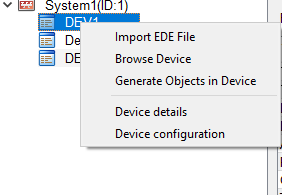
- Click on the "Import EDE File" option.
- In the file selector, select the EDE file that should be imported.
- All objects found are listed in the table of the Engineering Explorer now.
- Select the objects that should be created in WinCC OA from the table
- Right click on the table to open a context menu where the selected objects can be created in WinCC OA.
 Object exists
-
This object already exists in the WinCC OA project.
 Object in Device
-
Currently this object only exists in the EDE file. It can be created in WinCC OA.
 Object in DB
-
Object exists in WinCC OA, but not in the EDE file. Thus it should be deleted.