Translator - Example panel translation
This example shows how to add translations to a panel using the translator functionality.
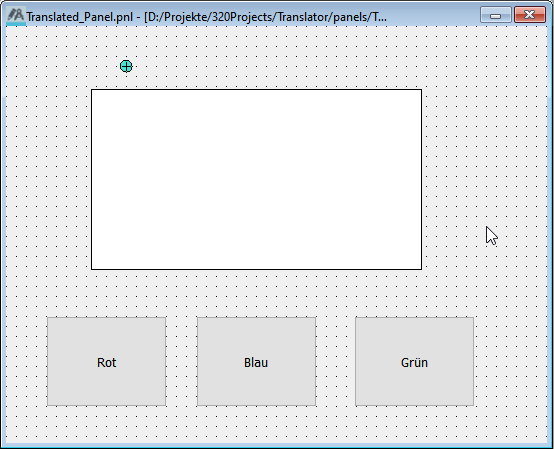
- Open a new panel in the GEDI.
- Add a rectangle.
-
Add a push button with the following code to the Clicked
Script:
-
RECTANGLE1.backCol("red");
-
- Copy the push button twice and modify the script to replace the color "red" with "blue" and "green".
-
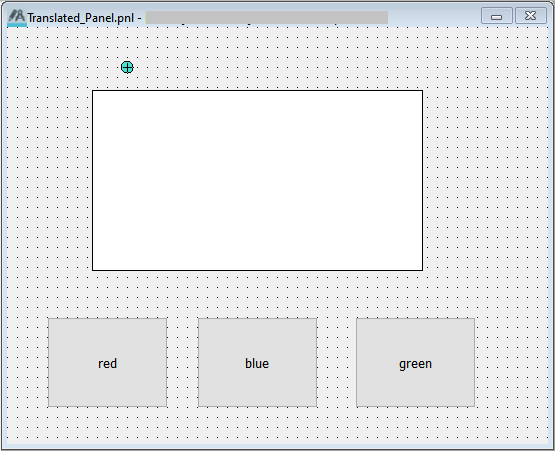
Set a text for the button labels in the source
language and make sure the Auto field for the automatic translation
is checked.
-
Open the Translator Panel via and click the Update translation files
button.
The translation file for your project is created and shown in the "translation files" area.
- Open the file in the Linguist tool via the Start linguist for selected file button.
-
Your new translation entries are still marked with the question mark. Select
one of them and add the translation into the Translation in
German field. Set the entry to "done" with the check mark button
in the menu bar.
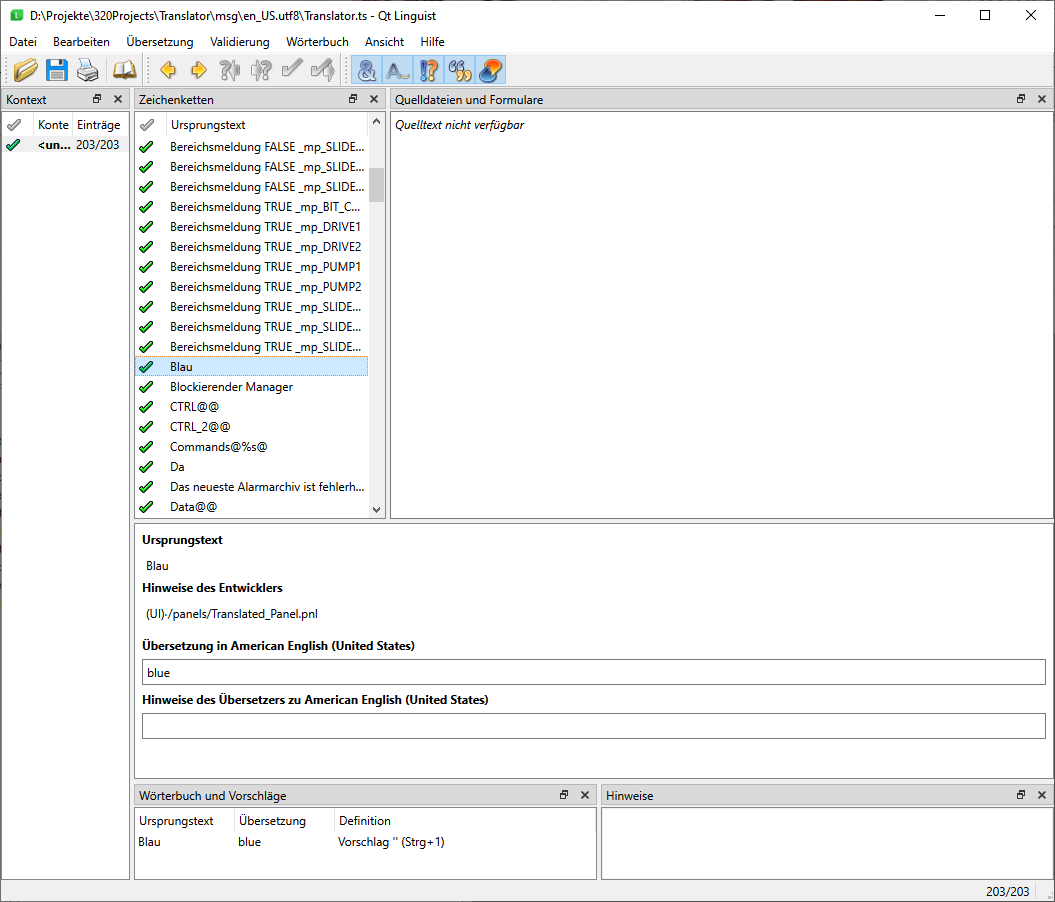
- Translate the other new entries and set them to "done".
- Save the translation file and close the Linguist window.
- Click the Create .qm files button in the Translation operations area to update the translations for the target project.
- Close the Translation panel.
The translations have been added to the panel and will be shown when the display language is changed.