
Datapoint connections
It is necessary to configure the connection (compare to dpConnect() ) on the corresponding elements in order to enable reacting to changes of the datapoint elements. The relevant functionality of the ScriptWizard can be found in the menu tab "Connect", with which connections to datapoints, handling of bad values and user permissions can be configured.
The configuration from datapoint connections is only available when the ScriptWizard is called via the "Initialize" event.
Structure
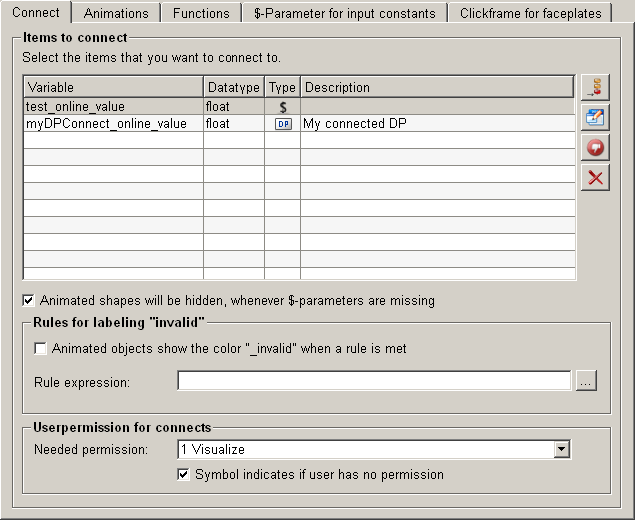
The menu tab "Connect" consists the following three parts:
- Connect to datapoints (datapoints for dpConnect)
- Handling bad values (Rules for labeling "invalid")
- Definition of required authorization levels (User permission for connects)
Datapoints for a dpConnect
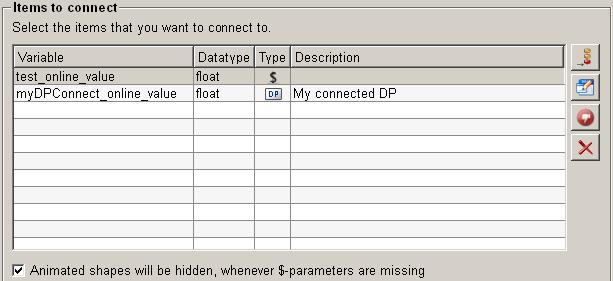
The datapoints overview shows all the datapoints, for which a connection in a panel or in a graphical object is configured. In addition to the datapoint name, it also offers information about data types and the variables for which the connection was created. In order to arrange the panel flexibly, a datapoint name can be replaced by a dollar-parameter. For more information please refer to dollar-parameter.
Add Datapoint 
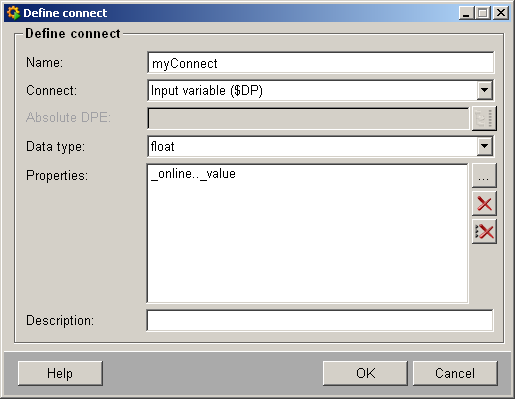
To add a new datapoint click on the push button "add datapoint" and the datapoint is connected to a
variable. The variable can then be used by the ScriptWizard. The figure below is an
example which shows a new datapoint is added and can be edited.
Name
Defines the name of the connect variable which shall be created.
Connect
Allows to select if a input variable (a $DP) or a absolute DPE shall be used.
Input variable => Allows to create a new datapoint element as placeholder ($DP)
Absolute DPE => Allows to select a existing datapoint element
Datapoint selection
Click on the push button "datapoint selection" and a list with all available datapoint
elements pops up.
Data type
Define the data type of a variable.
When selecting an "Absolute DPE", the data type is automatically identified and does not have to be configured manually.
Properties
Allows to select properties of the datapoint element to establish a connection.
Property selection 
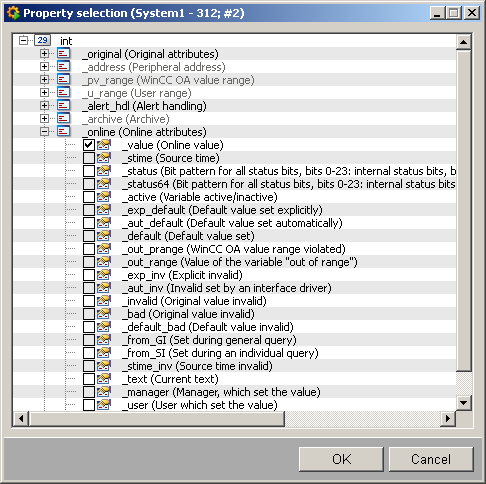
Allows to select one or more properties of the datapoint element.
When selecting "Absolute DPE", the configs which currently do not exist for the selected DPE will be grayed out (see the figure below).
Delete selected entry 
Allows to delete the selected entry.
Delete all entries 
Allows to delete all entries
Description
Allows to set a multilingual description for the element.
Edit datapoint 
Click on the push button "edit datapoint" and a dialog pops up. In this dialog you can edit the datapoint. Please refer
also to Add datapoint.
Create bad value handling 
Click on the push button "create bad value handling" to start handling a bad value.
For more information please refer to Rules
for labeling "invalid". The datapoint connection created for this
handling is independent of other datapoint connection.
Delete datapoint
Select a datapoint, click on the push button "delete datapoint" and the datapoint will be deleted.
Rules for labeling "invalid"
ScriptWizard enables reacting to bad values by defining a rule for the "invalid" label of received values. In case of the "invalid" label the graphical object is marked in a special color, indicating that the values in the UI are inaccurate and invalid.

Define rule
To define a corresponding rule click on the push button "define rule" and a dialog pops up. In this dialog all
the available variables and dollar-parameters which can be used in the rule are
listed. For more information about the rule dialog please refer to Rule Dialog.
A corresponding rule can also be created manually. However, as the syntax is not checked, you need to check manually if the syntax is correct!!
This rule applies to ALL the elements in the panel! Use logical "OR" ("||") statements to create more rules / conditions.
User permission for connects
To ensure that only authorized personnel can use the panel, user permissions can be defined for the panel. Without the right authorization, the datapoint are not connected, so the panel can not be operated.

Needed permission
The list of needed permission includes all the authority levels available in the project. A user must have at least one permission listed in the list of needed permission to operate the panel.
Select the check box under the list of required permissions to give an indication to the user if he does not have appropriate rights to operate the panel.