Login
Log in to the WinCC OA License Portal as an invited user and explore your group overview and portal interface.
As a new user invited to the WinCC OA License Portal, your first steps involve accepting your invitation, logging in with your Siemens ID, and familiarizing yourself with the portal's group overview and interface features.
-
Check your email inbox for an invitation titled 'Invitation to WinCC OA license portal.'
This email contains your secure access link to the portal.
-
Click the first link in the invitation email to access the portal.
This will direct you to the secure login page.
-
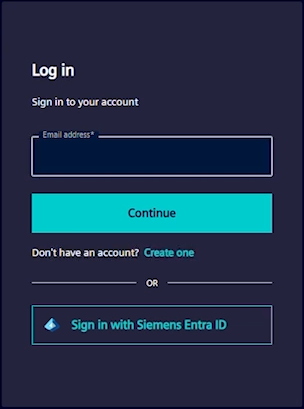
Log in with your Siemens ID.
If you do not have a Siemens ID, click the provided link to create one and follow the registration instructions.
-
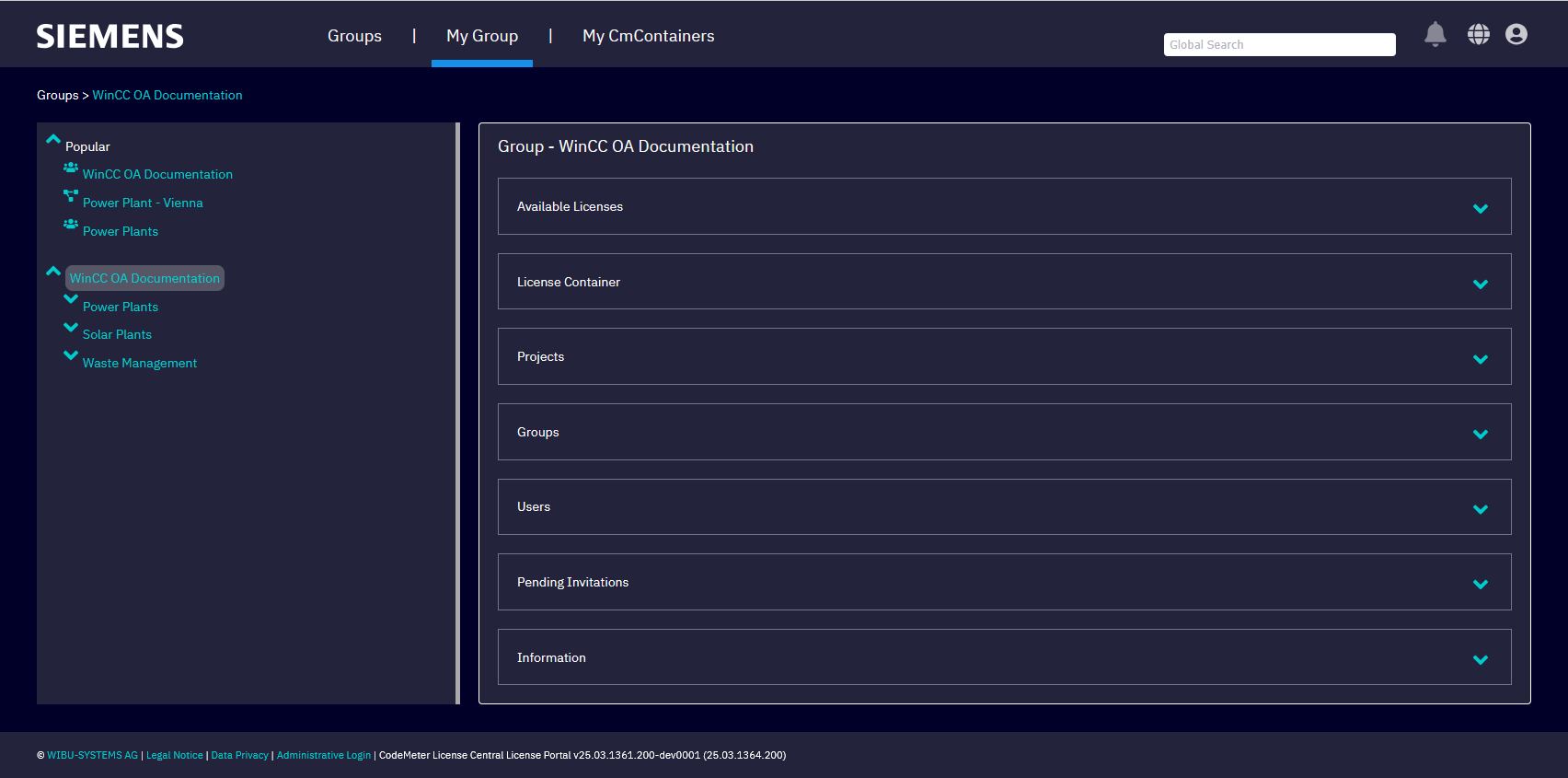
After logging in, review the overview of groups you can join or view.
The group overview page displays all groups available to your account.
- Select a group from the overview to explore its structure and details.
-
Familiarize yourself with the portal interface.
- The right side displays information boxes relevant to the selected group.
- Your user account is shown near the global search field.
- The bell icon notifies you of invitations and updates.
- The globe icon allows you to change your language settings.
- The settings button provides access to portal configurations, user permissions, and health check features.
- Your profile button gives access to account information and the option to log out.
You are now logged in to the WinCC OA License Portal, able to view your groups and navigate the portal interface to begin managing licenses, containers, and projects.