Example of working with PowerConfigs
This page shows you how to use a PowerConfig and apply configuration to multiple data points. An OPC interface allowing communication between WinCC OA and peripheral equipment might be a possible application for using PowerConfigs for rapid generation of the correct peripherals address for large numbers of datapoints. Of course one must make sure that the correct symbols are used when programming the PLC.
Example
Configuration of a peripherals address (OPC output) at the datapoint element .default.position of the master datapoint _mp_Valve of type Valve.
Before working through this example, you need to create a datapoint type Valve (the chapter Creating a datapoint type describes the structure and explains how to create it). Once you have created it, you then need to create a master datapoint for this type.
- Right-click on the datapoint element Valve1 and select the option Insert
PowerConfig. Insert the Periphery address PowerConfig (select OPC
output from the combo box).
Figure 1. Inserting periphery address 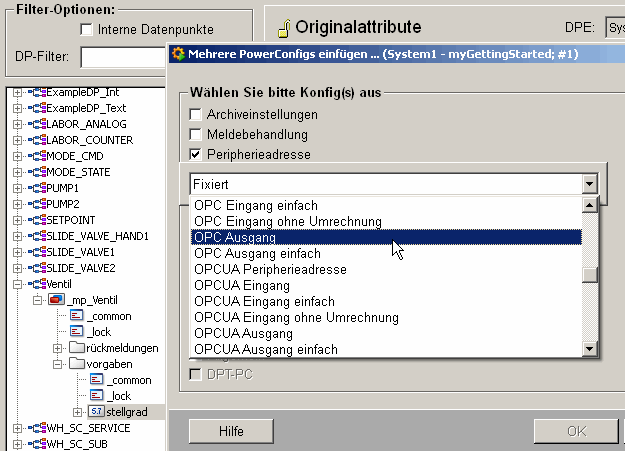
- Click on OK to confirm your selection. A dialog box opens, notifying you that you must now configure all the Configs belonging to this PowerConfig (the Periphery address PowerConfig also contains the Command conversion and WinCC OA value range Configs). Configure all the Configs in sequence (you can use your own preferred values in the configuration panels). The layout and the configuration options in the standard panel is described in the chapter PARA Module/Datapoint configs and in the specific driver chapter (see OPC address panel).
- Once configuration is complete, create a number of datapoints. There are various options for creating multiple datapoints: using a dedicated panel (Creating multiple datapoints), using templates (Examples of working with templates/DP lists) or using the Excel Tools (Example of mass configuration) - at the bottom of this page there is an example of how to use Excel to create multiple datapoints in a system).
- When configuring the OPC Item Name for the datapoint element, the character string _mp_valve_OPCITEM for the master datapoint appears by default in the text field of the configuration panel. This character string is replaced by datapoint name_OPCITEM when creating multiple datapoints. You can use your own notation for configuration of the item (for example, _mp_valve - the item name of the datapoint elements is thus composed from the datapoint name).
- Once you have created the datapoints, the dynamic attributes can be changed retrospectively. You can change the dynamic attributes either in a template or in the PARA module (see PowerConfig configuration at the datapoint).
A large number of datapoints already containing the correct peripherals address have been created in the system. Thus the peripheral address does not need to be set for each individual element.