CodeMeter Control Center - Display License Options
- To display the license options, open the CodeMeter Control Center (See the description of Check Available Licenses for screenshots ).
- Then open the WebAdmin via the CodeMeter Control Center (see the description of Check Available Licenses for screenshots ) by clicking on the WebAdmin button at the bottom right. The WebAdmin web page is opened.
- Open the view of all containers via the menu Container. Then open a specific container via .
- The licenses are shown.
Figure 1. CodeMeter WebAdmin Web Page 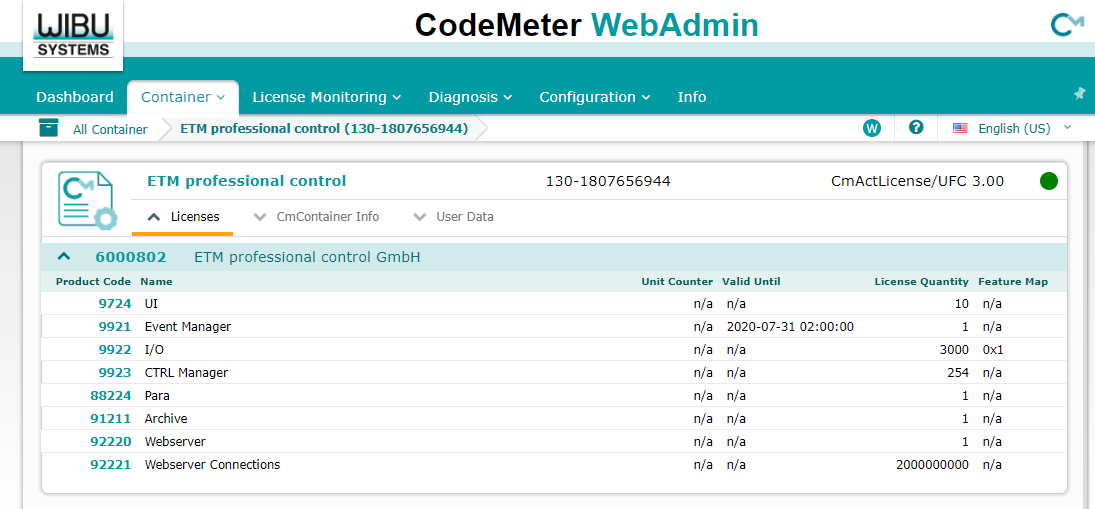
- Depending on the license options that you have purchased, different options are
shown on the CodeMeter WebAdmin page. By clicking the Product
Code, detailed information on the license option is shown:
Figure 2. WebAdmin: Container - Product Item Details 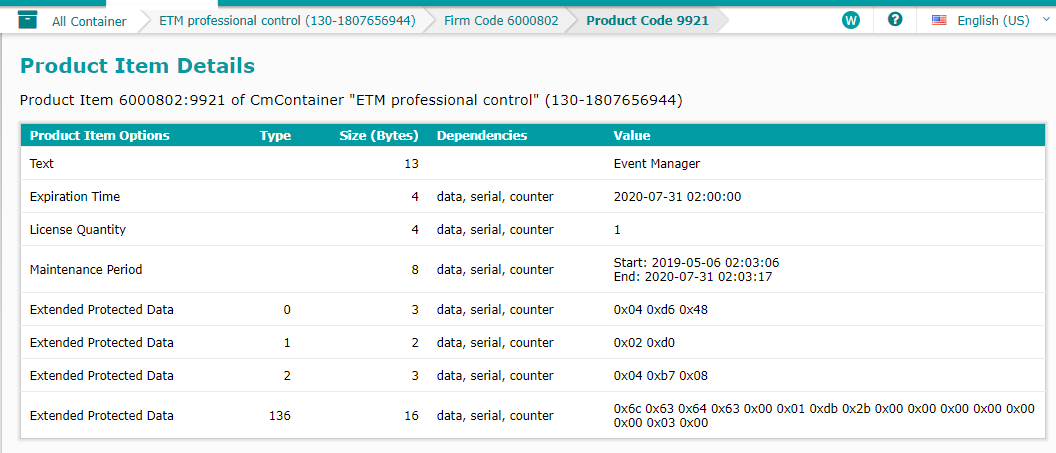
- Product Item Options (Source: WIBU Systems (2019). Online: CmUserHelp/us/index.html?product_item_details.htm)
-
In the first column you see the Product Item Options. These are license properties set by the licensor.
- Type
-
If the license properties represent data fields, the column informs in which area of the CmContainer these fields are located.
- Size (Bytes)
-
The column contains the number of bytes a listed license property allocates.
- Dependencies
-
The column informs whether a licensor has set dependencies for the programming sequence of the CmContainer.
- Values
-
The final column displays the stored value of the single license property.
Check the License Sessions
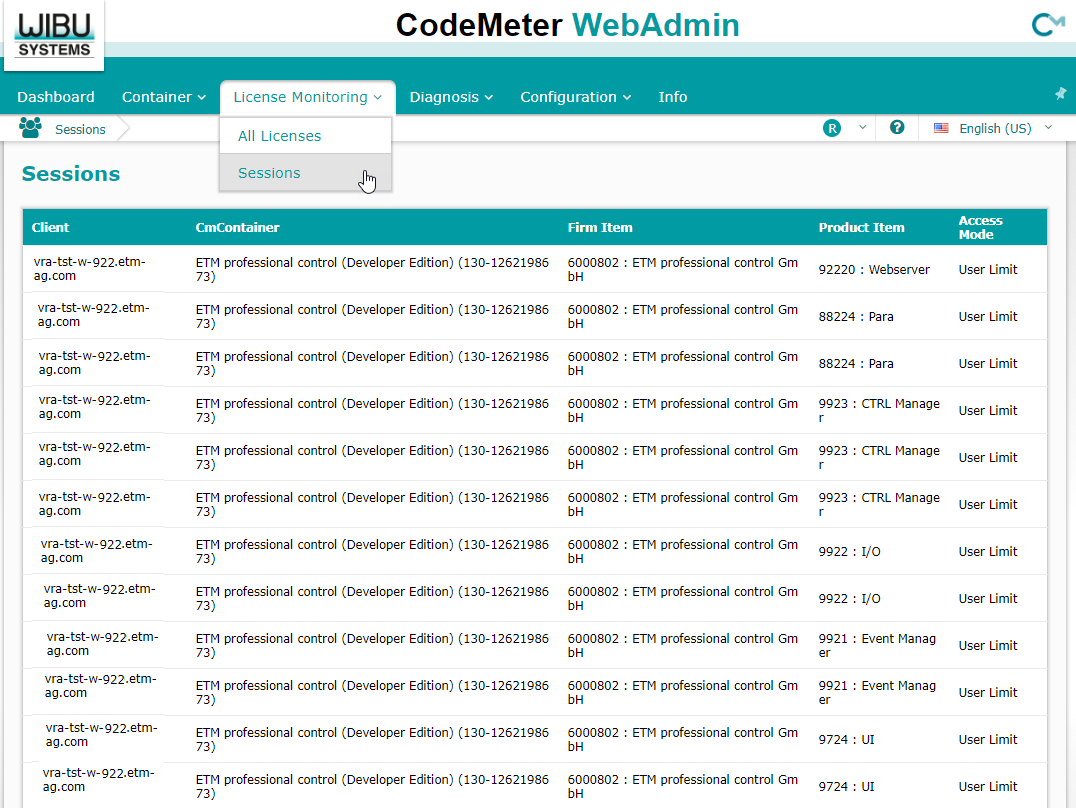
You can check which licenses are assigned to which clients via the .